No items in cart
Buy 2 Get 1 Free
Add 3 products to the cart and get the cheapest for free at checkout.
Add 3 products to the cart and get the cheapest for free at checkout.

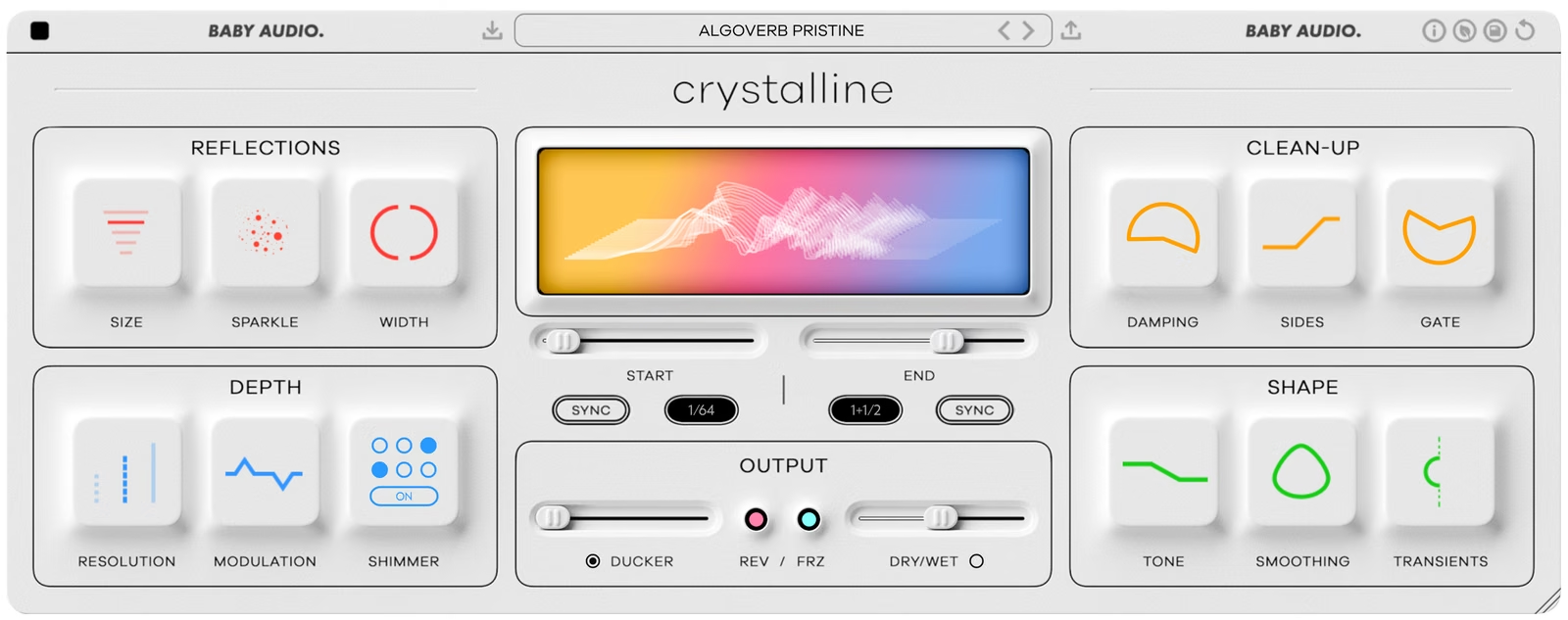
A ‘perfect algorithmic reverb’ is often considered the ‘holy grail’ of digital audio effects. In fact, the idea can be traced all the way back to research papers from the 1960s.
Throughout the 20th century, algorithmic reverbs evolved – but limited computing power forced manufacturers at the time to work within narrow constraints.
Fast forward, and we now have the resources to do things that couldn’t be done during the golden age of studio reverbs. Both in terms of sheer sound quality, but also in terms of adding creative features that weren’t possible in the hardware days.
Crystalline stands on the shoulders of 60 years of chasing ‘the holy grail of DSP’. We’ve asked ourselves what the pioneers of legendary digital reverbs would have done if they had the resources we have today – and then we’ve made exactly that plugin. With all the bells and whistles a modern engineer would need.
Welcome to Crystalline—a next-generation algorithmic reverb.
To get started, insert Crystalline on a return track or directly on the track you want to process, then browse the presets for a starting point. When using it as an insert, set the balance between the dry signal and the reverb with the Dry/Wet slider in the Output section. Engage Wet Lock to keep that balance while you browse.
The Start and End controls set the pre-delay and decay of the reverb. By default, both are synced to your DAW’s tempo so the reflections sit in time with the music. Hit the Sync/MS switch to set them in milliseconds instead.
Shape the space itself in the Reflections section. Size sets the room size independently of the decay time, Sparkle adds brightness inside the algorithm and Width sets the stereo image from mono to extra wide.
The Depth section controls the character of the reverb. Raise Resolution for a cleaner, denser response, add Modulation for a richer sound, or engage Shimmer to let the high frequencies ring out longer than the rest of the tail.
Keep the reverb clean in your mix with Damping and Sides in the Clean-Up section, then fine-tune its color with Tone, Smoothing and Transients in the Shape section.
Finally, use the Ducker in the Output section to pull the reverb back while the dry signal is playing, or reach for Reverse and Freeze for more creative effects.
Add Sparkle for extra shine and a touch of Modulation to thicken the tail. Use Sides to keep the low end of wide reflections in mono so they don’t muddy your mix, and engage the Ducker so the reverb blooms between phrases instead of masking the lyrics. If the tail gets harsh, turn up Smoothing.
Recreate the classic 1980s gated snare in seconds with the Gate in the Clean-Up section. Set the Threshold and Release to taste, then use Transients to push the emphasis toward the attack or sustain of each hit.
Keep the Start and End times synced to your project tempo so reflections land in time with the groove. Use Damping to filter out clutter at both ends of the spectrum for a reverb that adds space without crowding the mix.
Set a long End time and engage Shimmer for an angelic halo on pads, guitars and keys. Hit Freeze to capture a snapshot of the reverb and hold it as a bed for transitions, or flip the tail with Reverse for swelling, backwards-reverb effects.
Because Size and decay time are independent, Crystalline can create rooms that couldn’t exist in the real world. Try a huge space with a very short tail for wide, punchy ambience, or a tiny room with an endless decay for strange, resonant textures.
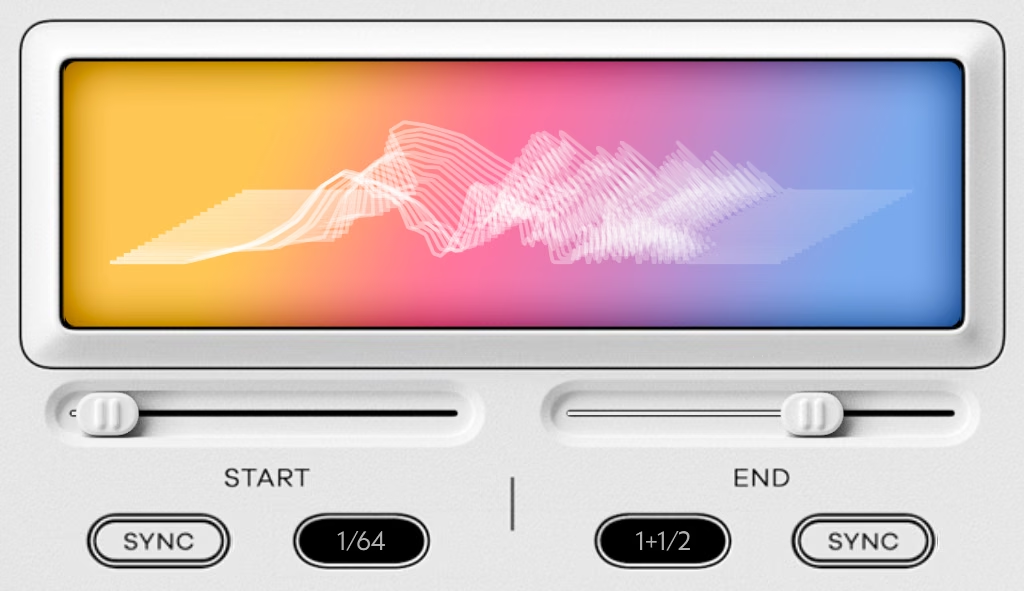
Crystalline lets you hard-sync the reverb attack and decay time to your DAW’s tempo. This will generally result in cleaner mixes where the reflections are naturally in sync with the music.
Prefer the classic way? Just hit the Sync/MS switch and Crystalline lets you set pre-delay and decay times in milliseconds instead.
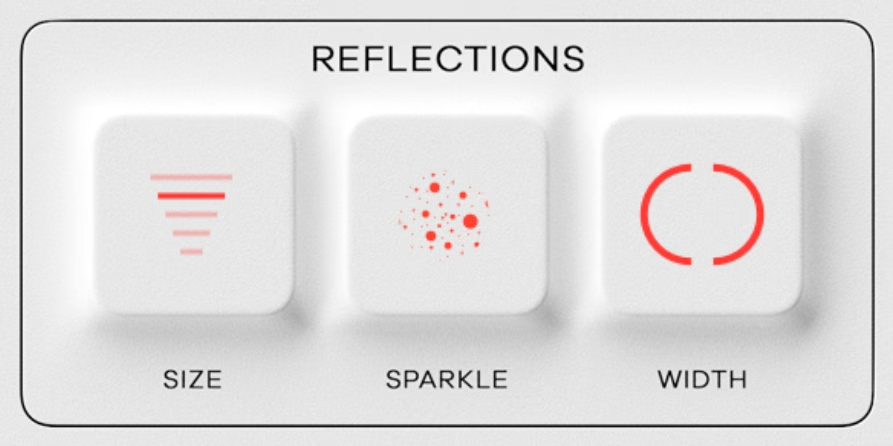
Set the room size from tiny to large. This control is detached from the Length control, meaning you can get any size/length combination you want, including esoteric settings like huge spaces with very short tails or tiny spaces with very long tails.
Emphasize high frequencies inside the reverb algorithm. This generates reflections that are naturally brighter, which will help you achieve that extra shine on vocals or snares.
Set the stereo image of the reverb from mono to wide – to extra wide.
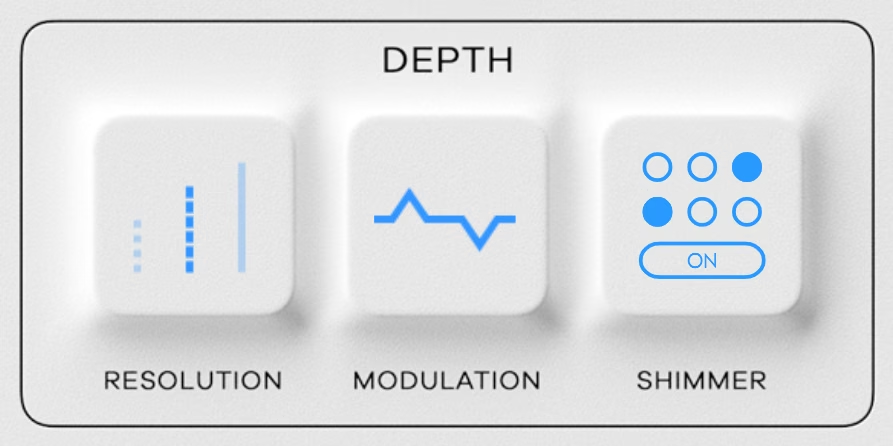
Set the complexity of the algorithm from ‘Basic’ to ‘Pristine’. More complex settings will give you an ultra-clean reverb response, free of metallic artifacts, while the ‘Basic’ setting will give you efficient CPU performance at a normal fidelity.
Create pitch variations inside the reverb algorithm. This results in a richer sound that works especially well to fatten up synths, guitars and vocals.
Make the high frequencies of the reverb tail decay slower than the rest of the spectrum, giving the reflections an ‘angelic halo’ effect. You can set the frequency cutoff point as well as the multiplier effect, which controls how much longer it takes for the higher frequencies to decay.
Note: If Shimmer is active, the high frequencies will decay later than your specified reverb End Time (at 2x, 4x or 6x the length).
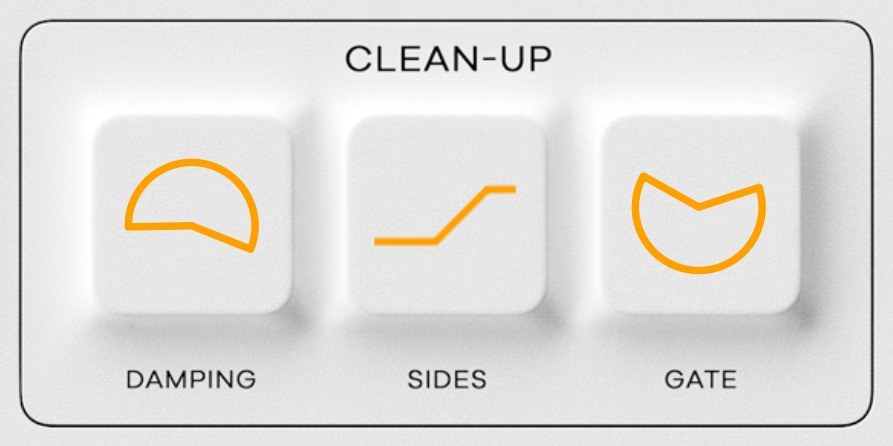
A dual filter control that lets you remove high and low frequency content from the reverb reflections. This control offers a fast way to get rid of clutter and muddiness in your mixes.
A high-pass filter that removes stereo information from the low end of the reverb, while keeping the mono information intact. This is especially helpful for creating wide vocal or lead instrument reflections without muddying up your low end.
Instantly recreate the classic 1980s gated reverb sound. The gate offers Threshold and Release controls and makes it fast and intuitive to make your snares go ‘Phil Collins’.
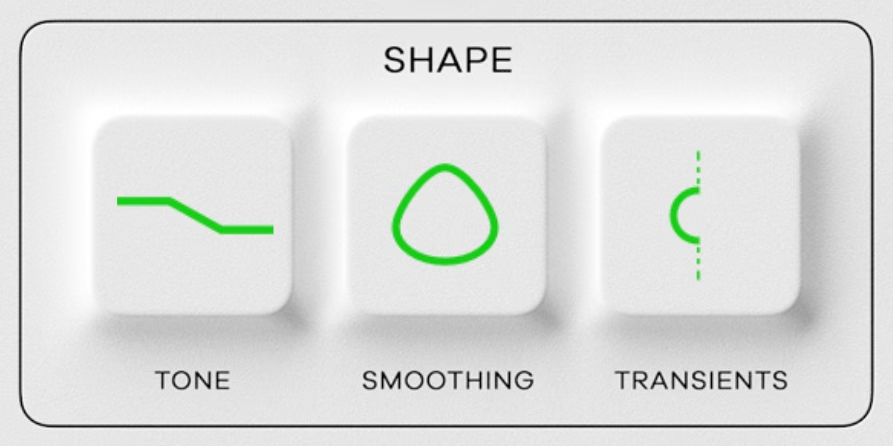
A tilt EQ that lets you quickly shift the frequency balance of the reverb to brighter or darker.
Gradually apply an EQ curve custom-designed to address the frequency areas that tend to get resonant and sharp. It mellows out harshness and gives Crystalline a more subtle feel. This allows you to add a little more reverb without drenching your mix.
Shape the reverb’s dynamic profile by warping the transient response. This feature is mostly useful on percussive material where it lets you shift the emphasis toward the attack or sustain part of a signal.
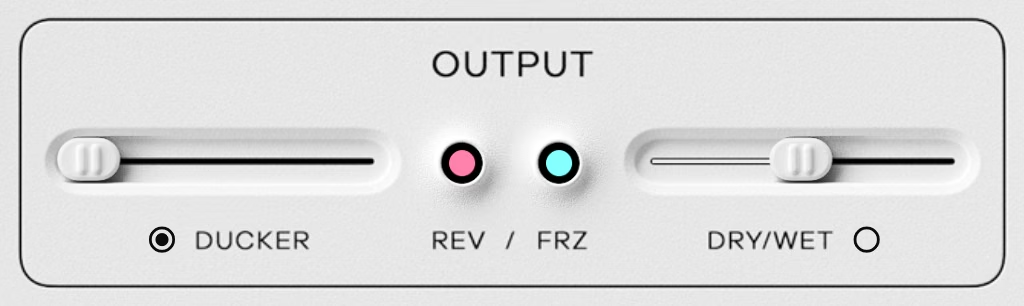
Lower the reverb signal when the dry/incoming track is playing. This gives you a cleaner mix, where you can turn up the reverb more without compromising the dry track.
Ducker Gentle mode offers a slow and natural ducker setting, while the standard ducker mode has a more pumpy feel.
Reverse the reverb playback, giving you some radical sound design possibilities.
A creative effect that takes a granular snapshot of the reverb when clicked and holds this snapshot continuously until the button is un-clicked again. It can be a powerful effect for creating interesting transitions in a mix.
Set the global mix balance between the dry/incoming signal and the reverb signal. Click the Wet Lock button to browse presets while keeping your preferred wet/dry balance for easier comparison.

Switch between light and dark background colors.
Run Crystalline in a low-CPU mode by setting the resolution to ‘Basic’ and disabling the Shimmer effect.
Save your own default preset that will appear when the plugin initializes or you hit the Reset button. That way, you can save your preferred color and size settings.
Reset the plugin’s state to your default preset.
Show help text explaining each plugin parameter when you hover over it with your mouse.
The plugin window is fully resizable (click+drag the bottom right icon).
Crystalline comes loaded with more than 300 presets from Baby Audio and friends of the house.
We want to sincerely thank all of our amazing preset creators:
Download instructions are emailed to you right after your purchase, however you can always go to www.babyaud.io/account for the latest software updates. After downloading, unzip the file and select either Mac or PC depending on your system.
If you have an active subscription to the Plugin Collection Plan, Crystalline will appear in your Baby Audio Manager app for download.
Make sure your machine is registered, get the software by clicking ‘Download’ and follow the instructions to install.
Activate your software by entering the license key that was provided in your account when you bought Crystalline. Serial keys are entered in the ‘trial mode’ open screen. If you have any problems activating, please email support@babyaud.io.
If you’re running Crystalline in trial mode, please note that the trial will output 5 seconds of silence every 60 seconds. To buy the full version, go to: https://babyaud.io/crystalline
Please read our End User License Agreement here: babyaud.io/eula
Have fun using Crystalline! If you run into any issues or have questions along the way, you can always contact us at support@babyaud.io.


.png)