No items in cart
Buy 2 Get 1 Free
Add 3 products to the cart and get the cheapest for free at checkout.
Add 3 products to the cart and get the cheapest for free at checkout.

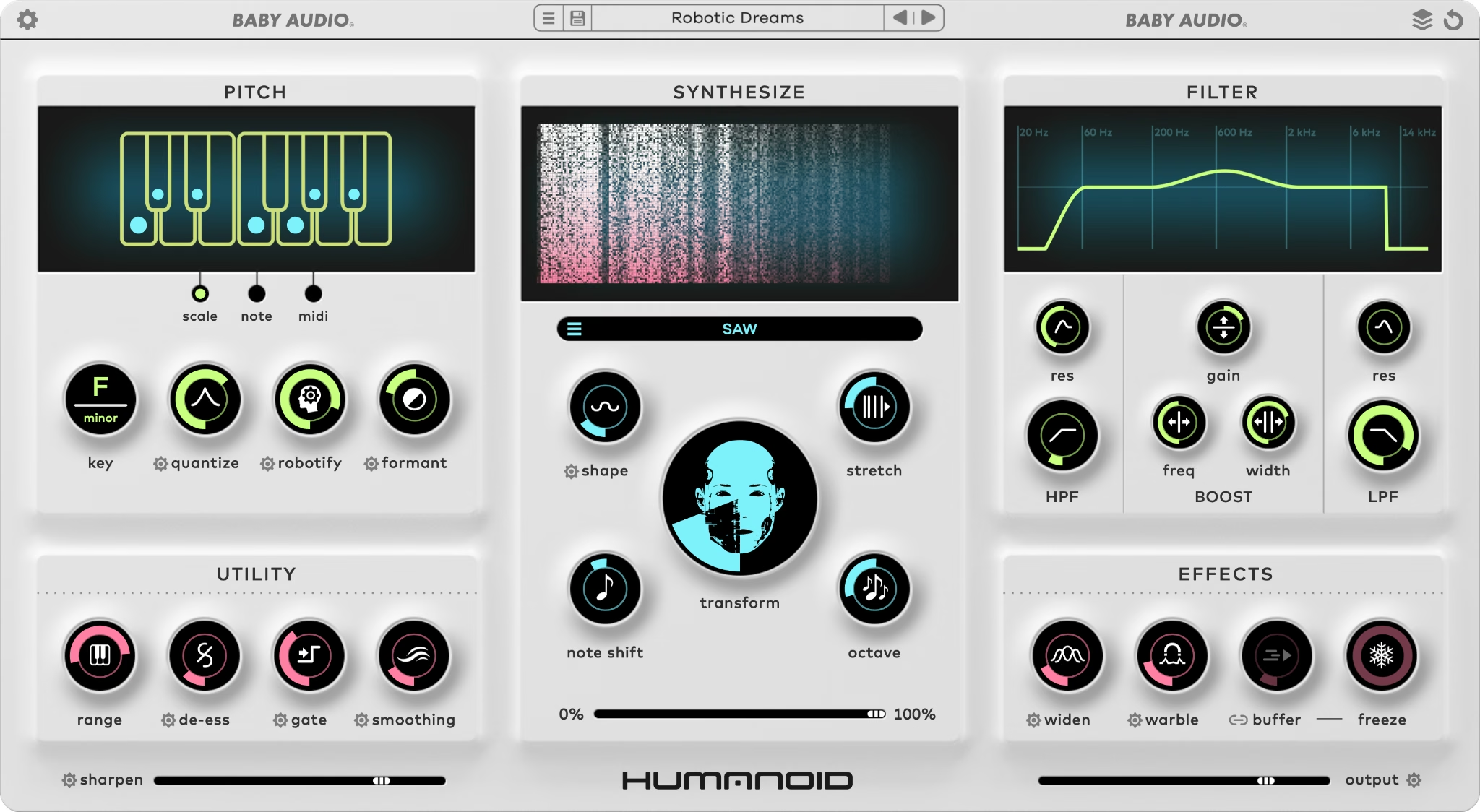
Create stunningly robotic vocals from any singing performance.
Humanoid is an over-the-top pitch corrector designed for instant hard-tuning and radical voice manipulation.
With a brand new approach to vocal tuning and phase-vocoding, the plugin transforms singers of any style and ability into their best synthetic selves.
But beyond its powerful capabilities, Humanoid is a tool for today’s moment in technology.
At the dawn of the era of intelligent machines, humanity’s role in the future feels uncertain for the first time. Artists can explore the gray areas between the natural and artificial to discover what the technologies we build say about who we really are. Humanoid gives you the power to play with those distinctions and envision a future where musicians and their machines can merge.
Make no mistake, however: Humanoid is a celebration of the species it was named after and our infinite creative potential. Made by humans, for humans, this plugin lets us penetrate into the domain of the machine before the machine breaks into ours.
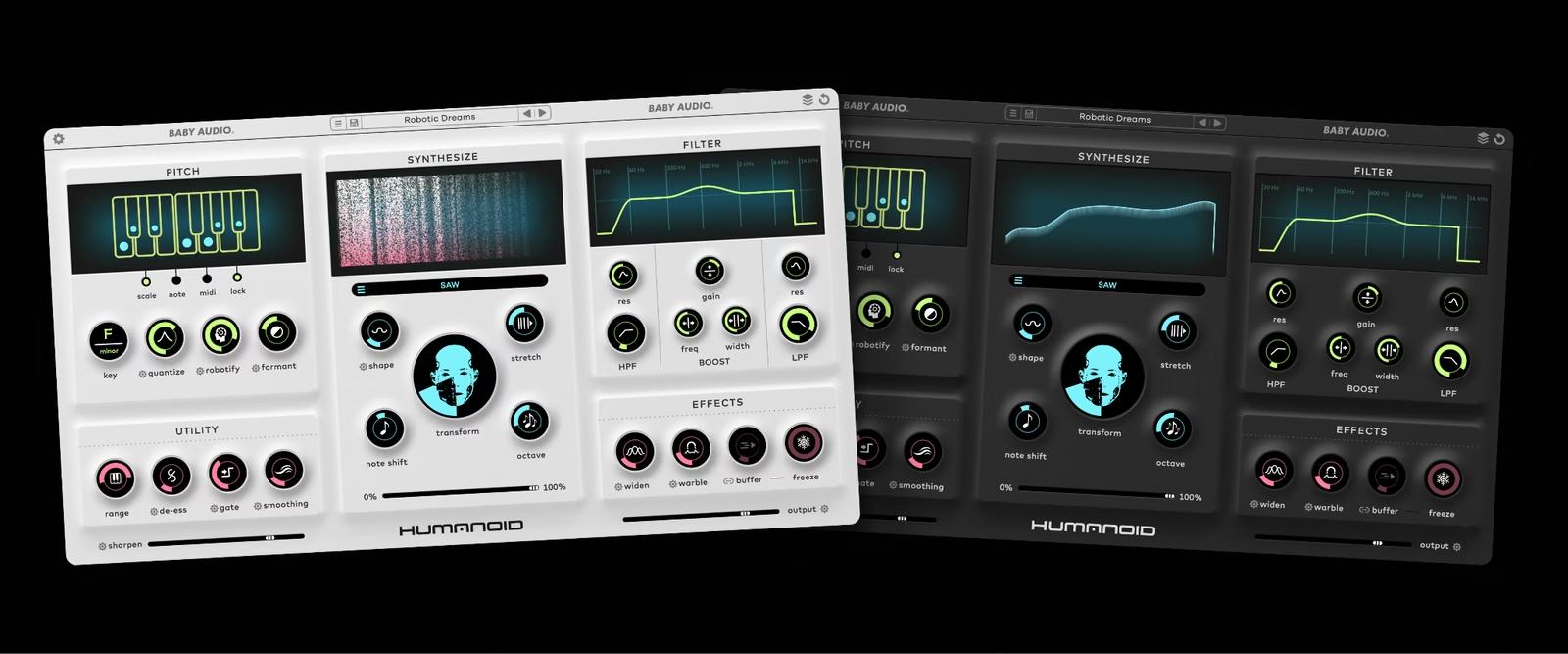
Welcome to Humanoid—a synthetic pitch corrector and extreme voice manipulator. Humanoid uses FFT hard tuning and additive resynthesis to transform your voice.
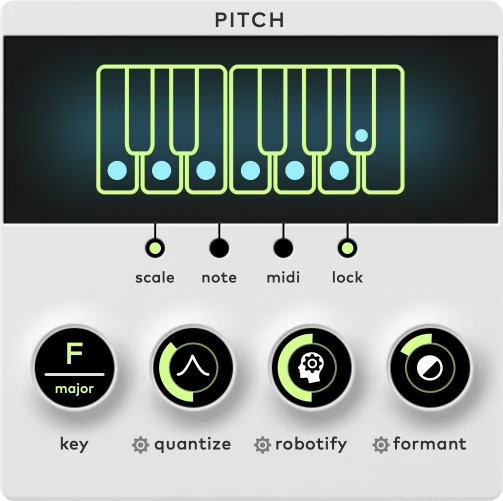
The Pitch section lets you choose how incoming audio will be tuned. Select a key and scale in Scale mode or input notes manually with Note mode or MIDI control.
Increase or decrease the synthetic quality of your voice with the Robotify control, and shift the vocal formant up or down for classic voice transforming effects.
Use the Synthesize panel to morph between the hard-tuned vocal and a wavetable synth oscillator. The synth follows the pitch corrected vocal signal and resynthesizes the notes you sing. Mix between hard tuning and resynthesis with the circular Transform dial.
Note Shift retunes the synthesized voice at fixed pitch intervals and Octave adds an extra layer above or below the original signal. Use the Synthesis Mix slider to mix the synthesis section with the original pitch corrected signal.
The Filter panel can act like a traditional EQ with a parametric mid band or as a synth-style resonant low and high-pass filter for tone shaping and sound design.
Use the Utility panel to clean up the incoming vocal signal for better pitch correction and resynthesis results. Add pitch warble, analog-style chorus and glitched-out freeze effects with the Effects panel.
Keep the Transform dial mostly left and choose lower Robotify values to use Humanoid as an instant hard tuner. Set the key and scale to match your song and adjust the quantize control to shape the pitch remapping behavior.
Turn the Transform dial all the way right to create a wavetable synth you can play with your voice. Vocal features will no longer be heard, but the spectral content from your singing will be morphed into a synthesis waveform.
Use dramatic formant shifting, aggressive Robotify settings and different combinations of the onboard effects to make your voice unrecognizable and alien.
Blend between tuning and resynthesis using custom user wavetables and advanced calibration settings to create the next evolution of synthetic vocals. Use the ultra aggressive filter to carve out a unique presence in the mix.
Use Humanoid in MIDI mode to generate as many variations on a vocal line as you could ever need for harmonies, backups and robotic choir effects. Enable the secondary synth interval and add a low or high octave for super thick double and triple-tracked harmonies.
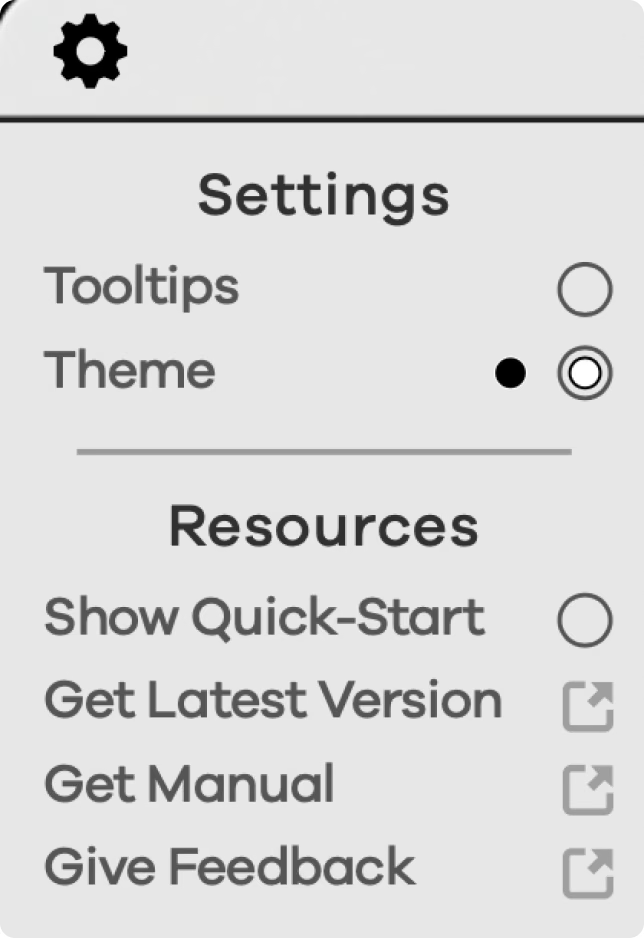
Toggle the tooltips on and off. Tooltips will not display when Humanoid is processing audio.
Choose between light and dark UI themes.
Trigger the quick-start guide. This will automatically load the first time the plugin is opened.
Download the most recent build of Humanoid.
Download the complete user guide
Contribute to Humanoid's development.
Set the frame size for analysis of incoming audio. Higher settings give better pitch detection at the expense of more latency. For production and mixing, use Medium or High. For tracking, set to Low.
Return Humanoid to its default settings.
*Note: Some DAWs like Logic Pro require Humanoid to be loaded as a ‘MIDI-controlled Effect’ on a virtual instrument track to be played in MIDI mode.
Only available in Scale mode
The Key Selector lets you choose the root and scale quality to automatically correct incoming notes. All 12 musical notes are available in major, natural minor or chromatic scale modes. You can make a custom scale by selecting or deselecting notes on the keyboard diagram.
Engage Preset Lock to lock the pitch correction settings and keep the tuning mode the same while changing presets.
Only available in Scale mode
Adjusts how fast incoming audio is corrected to the target pitch. Keep it low for more abrupt correction or turn it up to let notes breathe for longer before remapping to the target pitch.
Calibration options
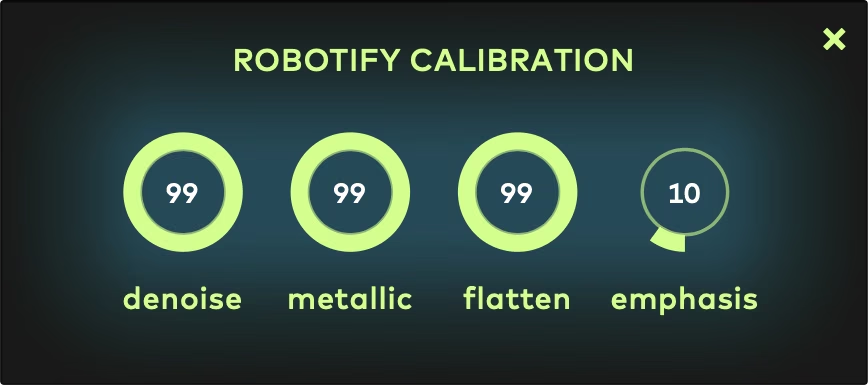
Increases the synthetic quality of the signal by conforming harmonics to an ideal ratio.
Turn it up to force harmonic partials toward perfect multiples for an eerily unnatural vocal sound.
Calibration options
Shifts the resonant frequencies of the voice up or down to simulate different shapes of the vocal tract.
Calibration options
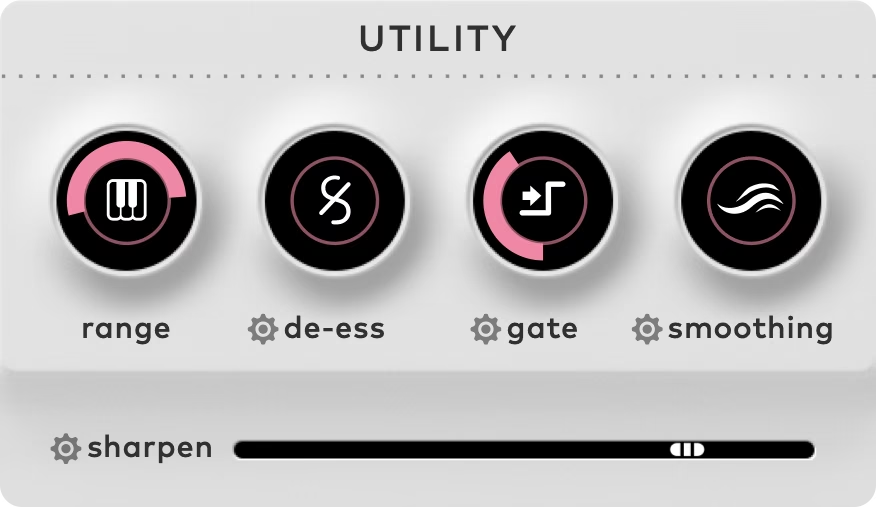
Define the upper and lower bounds for incoming notes to increase the accuracy of pitch detection. Set it to match the range of the original vocal performance.
Engage a de-esser on the pitch corrected signal to decrease sibilance. The de-esser acts as a compressor that only engages on the harsh ‘S’ sounds.
Calibration options
A noise gate that mutes the incoming signal below a set threshold to minimize background noise.
Calibration options
Reduce harshness by averaging the spectral material between analysis frames.
Calibration options
Add a pre-EQ curve to the input signal for a sharper balance that cuts through the mix.
Calibration options
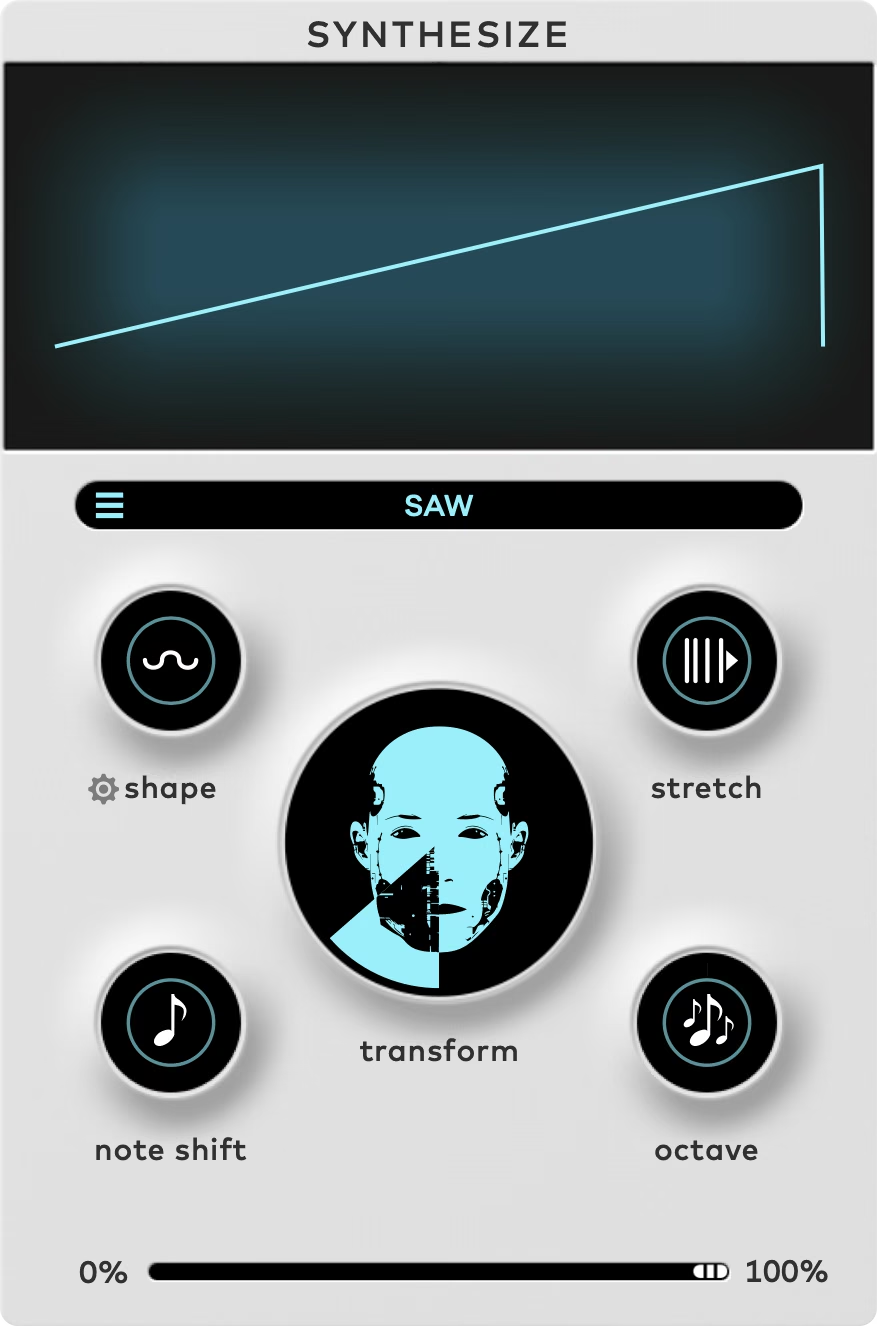
View the synthesized wave and harmonic spectrum.
Choose from factory or user wavetables. Waveform selection will appear in the display window.
Humanoid will accept any audio file you import, but can only create wavetables of a single cycle in duration. For best results, import a single cycle audio file. Longer files will be truncated automatically.
Click the trashcan icon to enable deletion of user imported wavetables.
Bend and mangle the oscillator wave shape according to a mathematical distribution.
Calibration options
Skew the waveform’s midpoint forward and backward with an effect somewhat similar to pulse width modulation.
Morph between the pitch corrected vocal and the resynthesized waveform to blend synth characteristics into the voice.
Add an additional synth line at a fixed interval above or below the source signal that follows the selected scale. Adjustment in semitones.
Blend in an octave up or down in the synth oscillator signal.
Crossfade between the pitch corrected signal and synthesis, including note shift and octave voices.
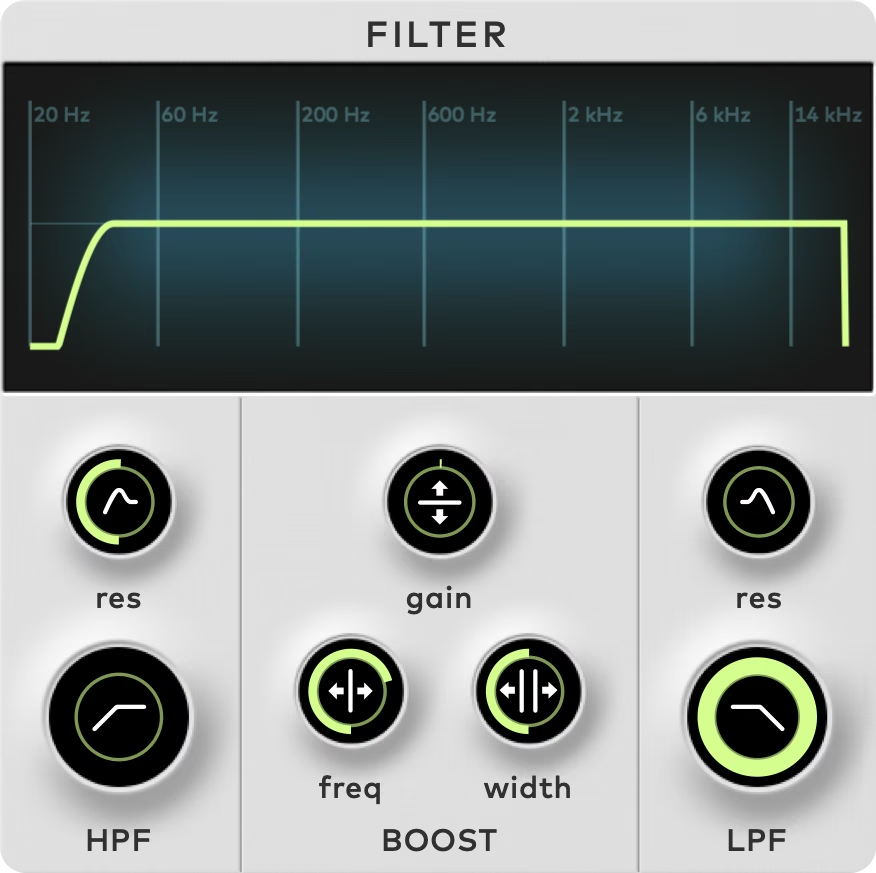
Shows a visual representation of the shape produced by the filter settings.
Adjust the emphasis around the HPF cutoff frequency.
Adjust the cutoff frequency of the high-pass filter.
Adjust the gain of the parametric mid band. Turn the knob clockwise to boost and counterclockwise to cut.
Set the center frequency of the parametric mid band.
Set the Q (bandwidth) of the parametric mid band.
Adjust the emphasis around the LPF cutoff frequency.
Adjust the cutoff frequency of the low-pass filter.
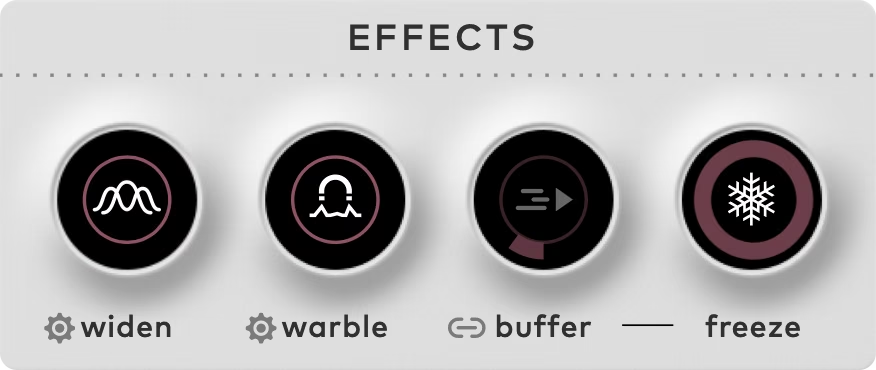
Increase the width and depth of the vocal with a chorus ensemble effect.
Calibration options
Applies vibrato to the signal’s harmonic partials during the resynthesis phase. Choose LFO mode for gentle vibrato or FM for growling audio rate modulation.
Calibration options
Determines the length of the captured audio when the freeze button is engaged. Can be synced to note divisions of the host tempo.
Captures and loops a segment of the incoming signal for glitch effects.
Set Humanoid’s global output.
Calibration options
The plugin window is fully resizable (click+drag the bottom right icon).
Humanoid comes packed with an eclectic and potent selection of factory presets.

From left to right, the preset bar gives you the following options:
Humanoid’s preset browser gives you easy access to the best patches from notable producers and sound designers:

Here are the top panel functions of the preset browser from left to right:
Preset packs will appear in the left column of the browser window.
We want to thank the following sound designers for creating presets for Humanoid:
Humanoid comes loaded with several shortcuts to speed up your workflow.
A software download is emailed to you right after your purchase, however you can always go to www.babyaud.io/downloads for the latest software updates. After downloading, unzip the file and select either Mac or PC depending on your system.
Activate your software by entering the license key that was emailed to you when you bought Humanoid. Serial keys are entered in the ‘trial mode’ open screen. If you have any problems activating, please email support@babyaud.io.
If you’re running Humanoid in trial mode, please note that the trial will output 5 seconds of silence every 60 seconds. To buy the full version, go to https://babyaud.io/humanoid
Please read our End User License Agreement here: www.babyaud.io/eula
We hope you’ll enjoy Humanoid and use it in your own way to achieve things we had never even intended for it to do. If you run into any issues or have questions along the way, you can always contact us at support@babyaud.io – enjoy the journey!


.png)