No items in cart
Buy 2 Get 1 Free
Add 3 products to the cart and get the cheapest for free at checkout.
Add 3 products to the cart and get the cheapest for free at checkout.

.avif)
SubCulture is a musically intelligent bass processor that transforms any monophonic signal into a powerful low frequency foundation for your tracks. With three distinct bass enhancement processors and a suite of flexible shaping tools, SubCulture lets you design the deep, commanding low end your mixes have been missing.
From thundering pitch-shifted octaves to resonant low harmonics and precision low frequency boosts, SubCulture gives you three complementary tools for adding earth-shaking low end to any bass line.
To get started, add SubCulture as the first insert on your bass instrument track. SubCulture works with any monophonic input material, making it equally effective on bass synths, DI bass guitar and even acoustic bass instruments.
Blend in SubCulture’s pitch-shifted Sub Layer by dragging up within the control’s panel. Note that the Sub Layer and Root Boost controls are X/Y grids with amplitude along the vertical axis and bandwidth along the horizontal axis. The pitch interval of each processor is displayed in the bottom portion of the panel. Click the cog icon in the upper left corner of each processor grid to access fine tuning settings.
While listening to the pitch-shifted Sub Layer, set SubCulture’s detection behavior using the tuning fork icon in the upper left corner of the menu bar. While the default settings often work right away, you may need to adjust the detection range, confidence or smoothing controls for the best results. To avoid any inconsistencies, define a fallback frequency for each module within the calibration menus. Select ‘Key’ to set the frequency units to note values to easily choose a note in tune with your song.
Experiment with SubCulture’s Resonance, Root Boost, Saturation and Compression controls for even more bass frequency emphasis and sculpting.
SubCulture is equipped with wet/dry and global output level controls to let you blend in the perfect amount of enhanced bass signal without losing any of the dry signal’s perceived intensity. Not only that, SubCulture’s three band master EQ lets you easily set levels for the sub, low and hi content in the enhanced bass signal. If needed, define a cutoff frequency for the global high pass filter to make sure unnecessary subsonic frequencies are filtered out. If you’re working with stereo input material, you can also set the Mono control to ensure that content below the set frequency will be summed to mono to avoid incompatibility.
Finally, use the onboard saturation and compression controls to put the finishing touches on your enhanced bass sound and make sure it hits hard in the mix.
SubCulture’s advanced pitch-detection engine makes it the ideal tool for reinforcing basslines with a powerful sub-octave signal.
Unlike psychoacoustic or synthesis-based approaches, SubCulture’s Sub Layer is always derived directly from the input signal.
That means even the most thunderous double-octave down settings blend well with the dry signal and retain its essential characteristics.
After pitch shifting, SubCulture tailors the generated signal for maximum depth and impact at the ultra-low frequencies, giving you instant extension below the original fundamental frequency of your bassline.
Each of SubCulture’s three core bass enhancement processors can be set to track the pitch of incoming audio. But they can also be used in manual mode with a user-defined static frequency.
You may prefer a mix of pitch-tracking and static behaviour for some applications, especially situations where traditional static bass enhancement is called for.
Try keeping the Sub Layer set to pitch-tracking mode while experimenting with different static frequencies for the Resonance and Root Boost processors to get a feel for how they interact.
A common technique when working with synthesized instruments is to position EQ boosts at musically relevant frequencies in a song’s key.
SubCulture makes this tedious manual process automatic and responsive to changes in pitch.
Enable auto pitch control for the Root Boost processor and set its interval to 0 st to get an instant EQ boost at the fundamental frequency of each incoming note of the bass line.
Use the X/Y panel to quickly dial in a gentle bell or narrow peak filter to easily augment any type of input material.
Alternatively, the Root Boost module can also be used to cut frequencies according to the incoming pitch information.
This is useful when you want to completely replace an existing bass sound with SubCulture’s octave-shifted signal.
Try keeping the wet signal high and using a narrow cut at 0 st to clear out space in the original bassline and let SubCulture’s octave down layers take center stage.
SubCulture comes equipped with everything you need to produce a hard-hitting mix-ready bass sound in a single plugin.
Its powerful multi-mode saturation and easy-to-use compressor make it simple to put the final polish on your enhanced bass signal with low-end optimized versions of familiar mixing tools.
With fully customizable parameters and flexible routing options, you can support the massive lows generated by SubCulture’s bass engines with stylish upper harmonics from 5 different saturation models.
Add the final glue and polish to your bass sound with SubCulture’s onboard compressor and saturation to make sure your bass sounds cohesive and defined in the mix.
To ensure the enhanced bass signal doesn’t become overwhelming, SubCulture is equipped with a master high-pass filter at the output section. Set it to a frequency below your essential bass content such as 30 Hz to avoid adding excessive subsonic information.
Finally, avoid any conflict between the dry signal and the enhanced bass content with the three band EQ and tailor the mix just right for the perfect bass every time.
While SubCulture was designed with subharmonics in mind, its state-of-the-art engines work well across the entire spectrum. Here are some further use cases:

From left to right, the top menu gives you the following options:
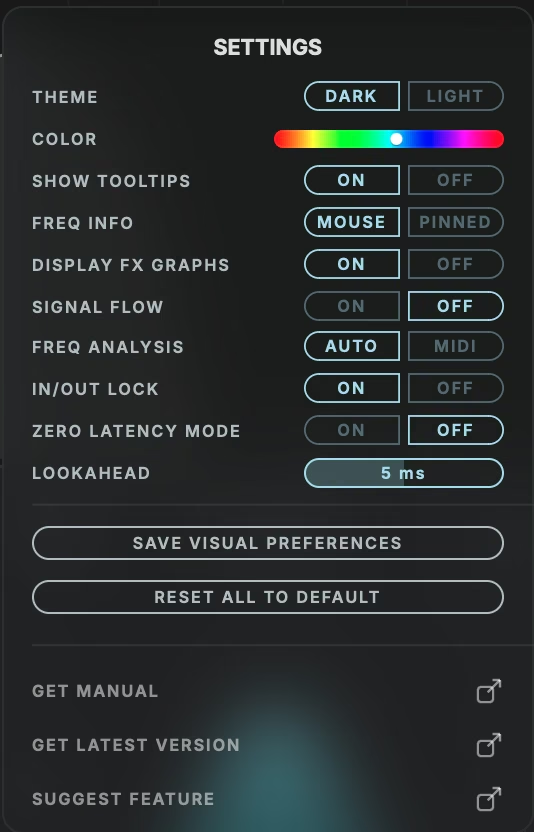
Choose from SubCulture’s light or dark UI themes.
Select the accent color used for SubCulture’s UI.
Show or hide tooltips as you mouse over SubCulture’s parameters.
Select how frequency and gain information is displayed in SubCulture’s waveform display panel.
Show or hide a representation of the bass enhancement modules’ action on SubCulture’s waveform display panel.
Display a chart of SubCulture's internal signal flow in the waveform display area to understand how the enhancement modules, saturation and compression are routed.
Switch between automatic pitch tracking (Auto) and MIDI mode, where the pitch of the enhancement engines is controlled by an incoming MIDI signal instead of the audio detector.
MIDI mode is ideal for material the detector struggles with, or when SubCulture is used away from the source, for example on a bus or the master channel.
Keep the set input and output levels when loading presets.
SubCulture offers zero latency operation at the expense of significant changes to its capabilities. While in zero latency mode, auto-pitch detection is not available, meaning that SubCulture’s bass enhancement engines will only use the static fallback frequency. Zero latency mode also restricts SubCulture’s range to -12 or -24 semitones only. This setting cannot be changed while your DAW is playing back.
Let the pitch tracker analyze the incoming audio slightly ahead of time, so the correct pitch is already dialed in when a new note sounds. Higher values give the tracker more of a head start at the cost of added latency. Cannot be changed during playback.
Save the current visual settings as the default for new instances of SubCulture.
Return SubCulture and all of its parameters to the initial state.
Download SubCulture’s full user manual.
Get the latest build of SubCulture.
Contribute to SubCulture's development.
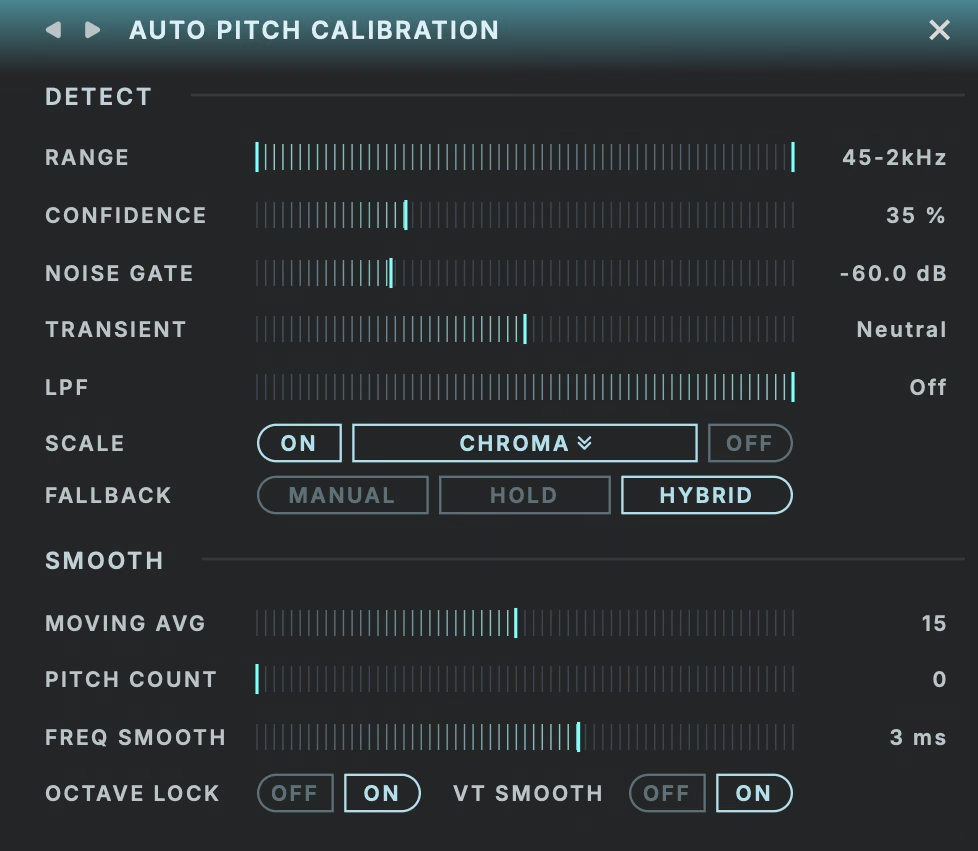
Click the tuning fork to access the auto pitch detection calibration settings.
Define the range of detectable pitches for the auto pitch engine. Try narrowing the detection range if the detected pitch skips octaves or varies too much between notes.
Sets the detection threshold for the incoming pitch information. At high settings, SubCulture will default to the fallback frequency more often; when set lower, it will use the detected pitch even if the detection was ambiguous.
Set the threshold for a gate on the input signal to minimize misdetections resulting from noise.
Reshape the transient characteristics of the signal going into the pitch detector for better results. Values left of center emphasize the attack while values on the right side emphasize the sustain. The middle position is neutral.
Low-pass filter the pitch detection signal to help the detector focus on the fundamental. Useful for harmonically rich sources like FM or distorted basses where upper partials cause misdetections.
Snap the detected pitches to notes within a musical scale for even tighter pitch detection. Select any major or minor key or the chromatic scale.
Off uses the raw pitch detection with no snapping. The right choice for detuned or microtonal material and sources with bends or slides.
The fallback mode setting determines how SubCulture behaves if the auto pitch detector loses the pitch or the detected pitch is unclear.
Smooth the pitch reading over time. Larger values give a more stable pitch but react slower to note changes; smaller values respond faster but can be jumpier.
Define the number of analysis frames that must agree before a new pitch is accepted.
Add a short transition time between tracked pitches to avoid any clicks or artifacts during abrupt pitch changes.
Snap the detected pitch to values within the octave to suppress any potential octave jumps.
Enable or disable a post-processing smoothing function that stabilizes pitch transitions.
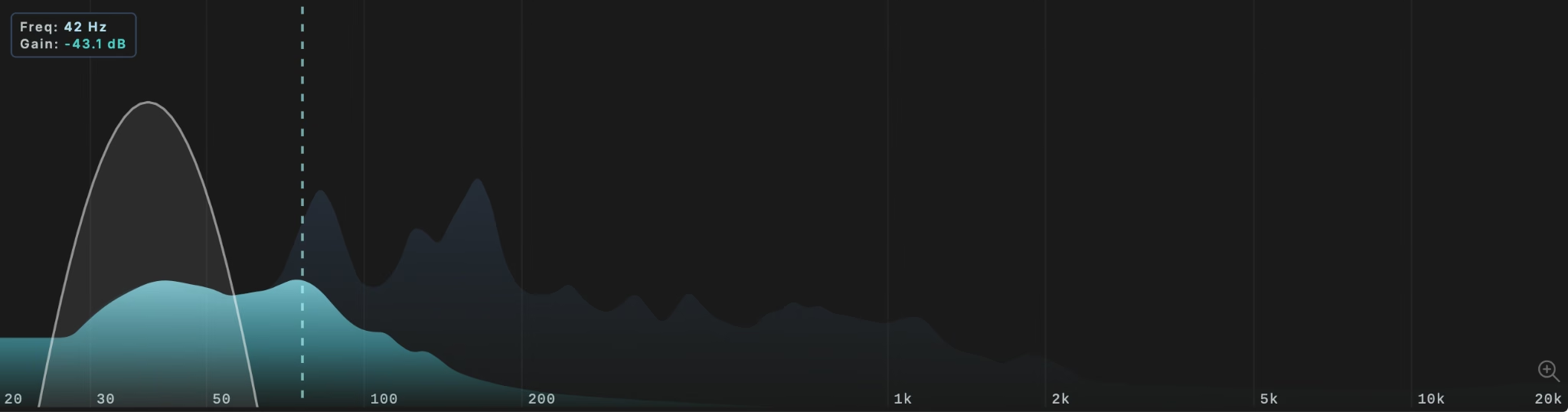
The waveform display shows the content added by SubCulture in the theme’s highlight color with the dry signal behind it in a transparent shade.
When hovering over an active bass enhancement module, the shape of its function will be displayed over the waveform view, showing its range and pitch-tracking behavior in real time.
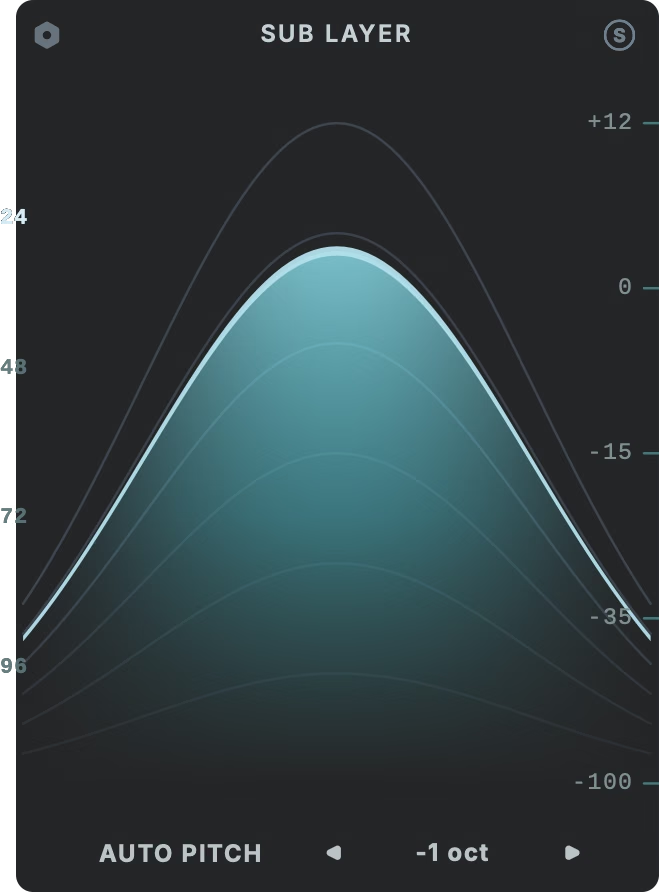
The Sub Layer section produces a pitch-shifted version of the incoming bass line, processed by a pair of filters to emphasize subharmonic content up to two octaves below the pitch of the original signal.
Set the level of the pitch-shifted signal by clicking and dragging up and down within the Sub Layer panel. Set the bandwidth of the filters on the pitch shifted sub layer by dragging from left to right.
You can solo the Sub Layer to hear its effect in isolation using the ‘S’ button in the top right corner of the panel.
The slope of the filters used to define the steepness of the Sub Layer capture edges can be selected using the numbers on the left edge of the panel, from 24 dB/octave to 96 dB/octave.
Select the octave offset +/- 24 semitones using the arrow keys at the bottom of the panel.
To fine tune the Sub Layer signal, click the cog in the top left corner of the panel.
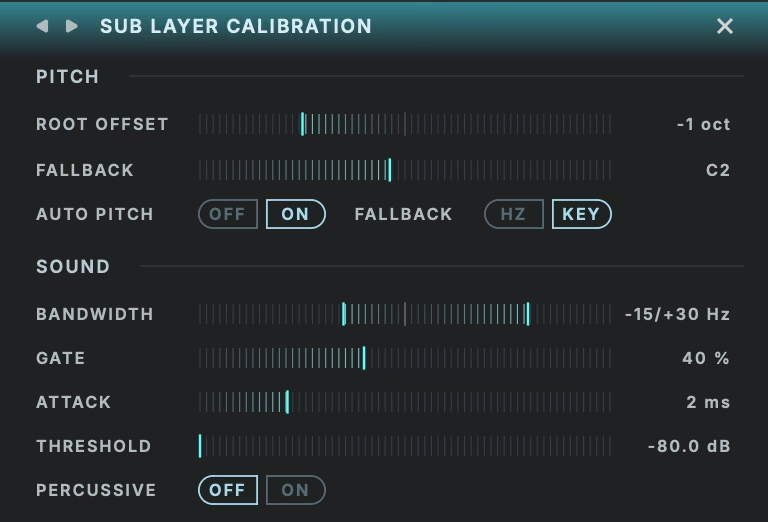
The Sub Layer calibration menu offers the following options:
Set a custom interval offset from the detected frequency in semitones.
Define a fallback frequency in Hz or MIDI note values if the incoming pitch cannot be detected.
Enable or disable the auto pitch detection for the Sub Layer module.
Define the fallback frequency in Hz or note values.
Set how much content above and below the tracked fundamental is captured by the Sub Layer. Broader = wider capture.
Set how strongly the sub layer follows the input's volume envelope. At 0% the sub sustains at a steady level; turning it up makes the sub track the dynamics of the played note, tightening its decay so it follows the source rather than ringing on from the filters.
Determine how quickly the sub layer reacts to new notes. Short = punchy and immediate; long = a smoother, gradual swell.
Set the threshold for a noise gate for the sub layer. When the input falls below the set threshold, the sub is silenced, so it only sounds on notes loud enough to matter. This is useful for keeping low-level noise or bleed from triggering unwanted sub octave signals.
Optimize the Sub Layer timing for percussive sources like kicks and drums. Transients pass through unaltered for punch. Leave off for sustained bass material, where the dry signal is time-aligned with the sub instead.
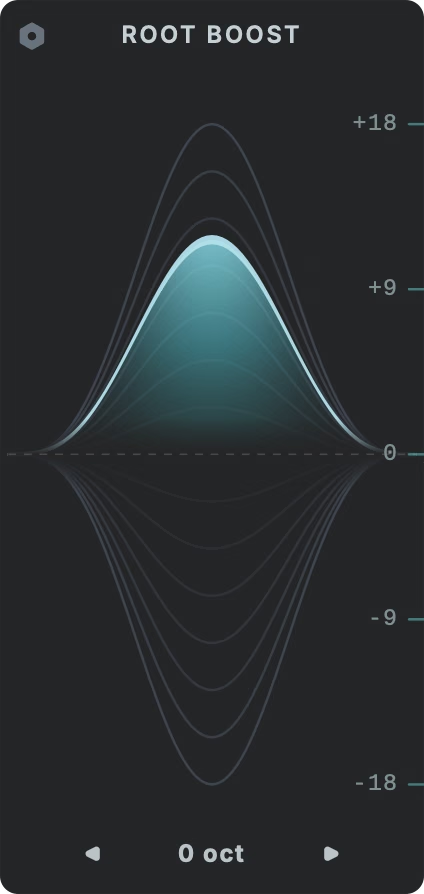
Root Boost is an EQ band with variable Q that tracks the fundamental frequency of the incoming audio.
Root Boost can provide up to 18 dB of boost or cut at the detected pitch and can be offset by +/- 24 semitones.
Drag vertically within the Root Boost panel to add boost or cut and drag horizontally to adjust the Q.
Click the cog in the upper left corner of the panel to access the Root Boost Calibration settings.
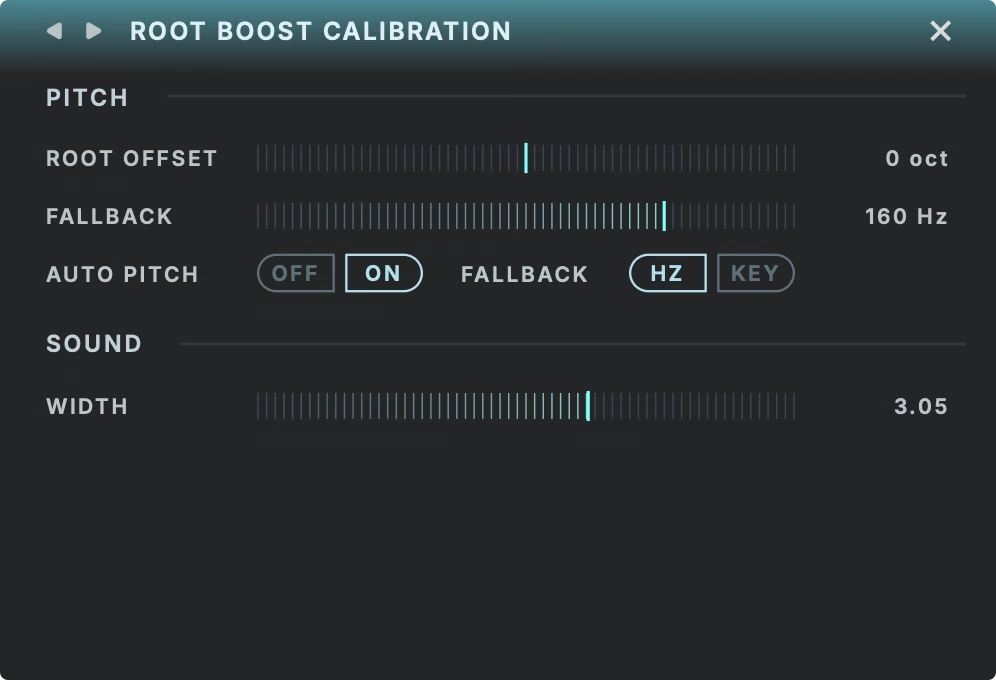
The calibration menu for the Root Boost offers the following options:
Set a custom interval offset from the detected frequency in semitones.
Define a fallback frequency in Hz or MIDI note values if the incoming pitch cannot be detected.
Enable or disable the auto pitch detection for the Root Boost module.
Define the fallback frequency in Hz or note values.
Set the Q factor of the Root Boost’s EQ band from 0.10 to 10.
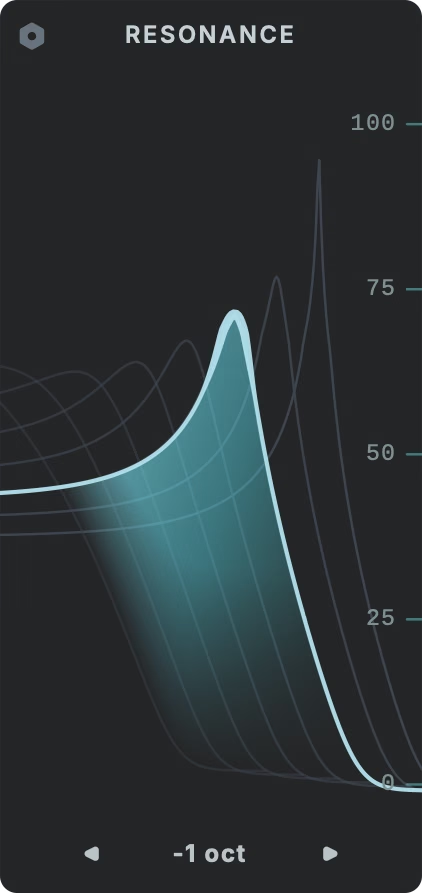
Resonance is a pitch-tracking parallel filter with distinctive shape and non-linear harmonics. By combining an aggressive peak around the detected frequency with a broad low-pass filter, it simulates the common synth technique of driving an analog filter for additional low end resonance.
The filter network is implemented in parallel so it never takes over the dry signal, but adds a recognizable resonant peak at the frequency of the incoming signal when in pitch-tracking mode.
The Resonance panel offers a single parameter for the intensity of the resonant peak from subtle to severe. Drag upwards within the Resonance control panel to increase the intensity of the resonance.
Click the cog in the upper left corner of the panel to access the Resonance calibration settings.
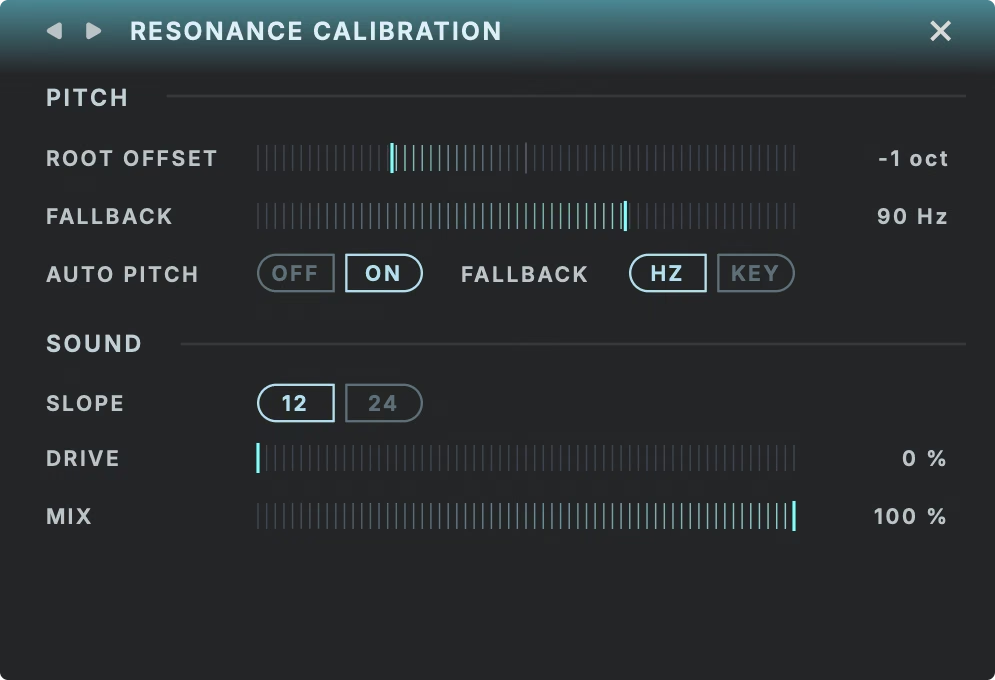
The Resonance calibration menu offers the following options:
Set a custom interval offset from the detected frequency in semitones.
Define a fallback frequency in Hz or MIDI note values if the incoming pitch cannot be detected.
Enable or disable the auto pitch detection for the Resonance module.
Define the fallback frequency in Hz or note values.
Select a 12 or 24 dB/octave slope for the resonant filter.
Hit the filter harder for additional non-linear coloration.
Set the internal wet/dry blend for the parallel filter.
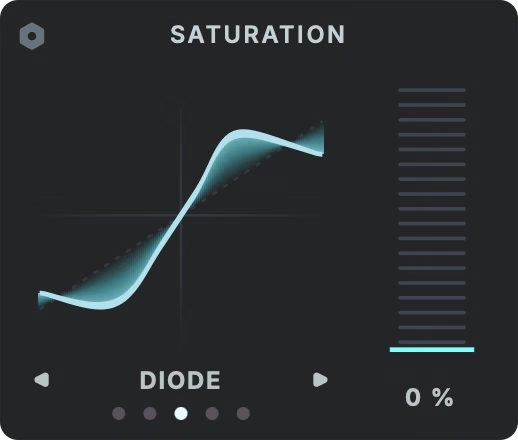
SubCulture’s saturation section offers five distinct styles with flexible fine-tuning parameters and routing options. Simply click and drag the intensity slider to set a saturation value and toggle between modes for different flavors of clipping.
Warm valve-style saturation that stays clean until driven, then softly rounds off peaks with smooth, musical harmonics.
Magnetic-tape character that gently compresses peaks and smooths the signal for a glued, cohesive low end.
Uneven, rectifier-style clipping that distorts each half of the waveform differently for a gritty, electric edge.
Smooth console-style warmth that adds harmonics and gradually softens the highs as you drive it, getting rounder and darker.
Clean, bright saturation that adds even-harmonic sheen while keeping the top end open and detailed.
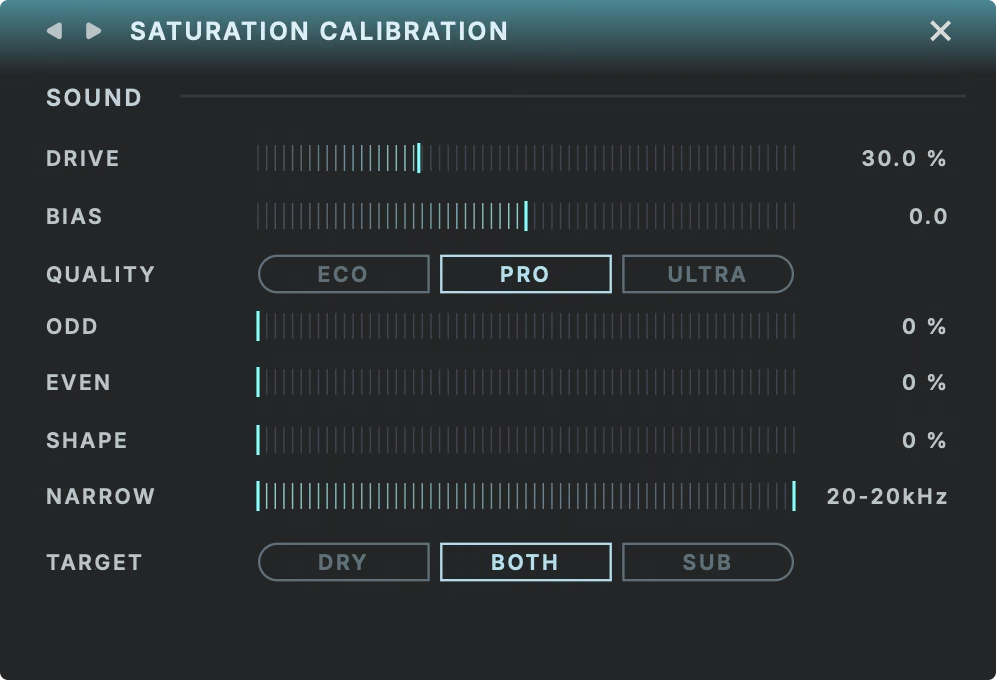
The Saturation calibration menu provides the following options:
Set the level of pre-gain going into the saturation module.
Skews the waveform asymmetrically before saturation, introducing even harmonics. Move away from the center in either direction for a richer, more colored saturation. Leave it at zero for a symmetrical, cleaner drive.
Select the processing resolution from Eco to Ultra. Lower settings may improve performance.
Define the distribution of odd harmonics in the saturated signal, expressed as a percentage.
Define the distribution of even harmonics in the saturated signal, expressed as a percentage.
Set the intensity of the clipping curve used to define the saturation.
Set high and low boundaries to exclude frequencies from processing with saturation.
Choose what gets saturated: the dry input signal (Dry), SubCulture's generated bass signal (Sub), or the combined mix of the two (Both).
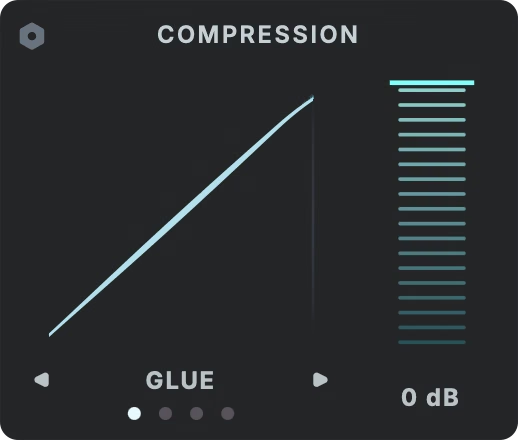
SubCulture’s multi-mode compression section gives you three distinct flavors of dynamic range compression to put the finishing touches on your enhanced bass sound.
Use the front panel threshold control to quickly set the amount of compression, with an auto gain function handling makeup gain under the hood.
The compressor section offers the following compression modes:
Classic VCA-style bus compressor known for its powerful mix glue effect.
Aggressive vintage-inspired compression that adds weight and power to the sound.
Intense compression meant to add rich sustain to the low end.
Define your own compression behavior for any mix situation.
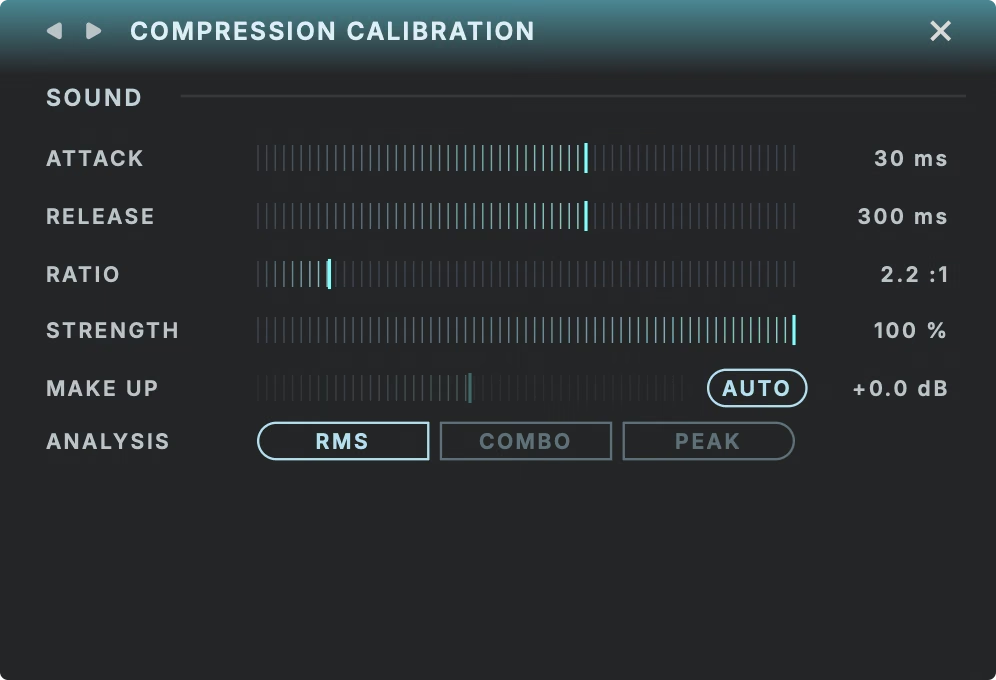
The compression calibration menu offers the following options:
Define the time for gain reduction to begin acting on the signal.
Set the time for gain reduction to return to normal.
The intensity of the compression when the signal crosses the threshold.
Wet/dry blend of the compressed signal for parallel NY-style compression.
Disable auto make up gain to manually set the level if required.
Select the detection method for the gain reduction. Peak reacts instantly, RMS averages level and Combo provides a mix of both.
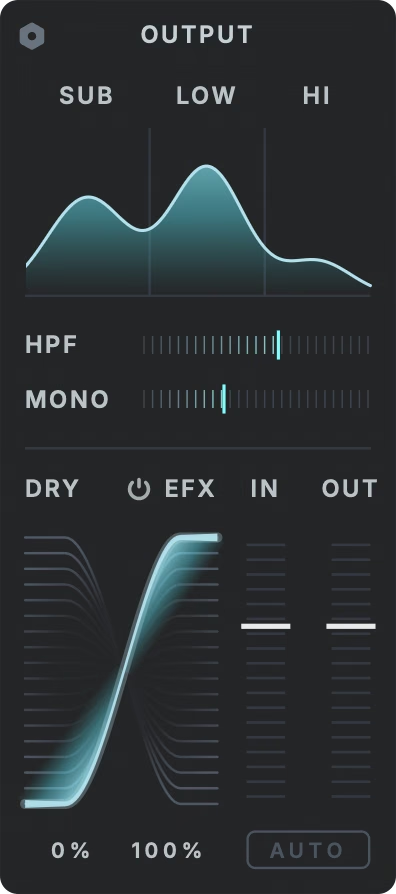
SubCulture’s global output section offers a three band EQ for quick adjustment of the sub, low and high frequency content of the bass signal.
In combination with the wet/dry blend and input/output level sliders, you can easily create any permutation of wet and dry and level it to taste in your mix.
In addition to the three band EQ, SubCulture offers a global high-pass filter (labelled HPF) to curb excessive subsonic frequencies below the enhanced material.
The Mono control sets the frequency below which stereo information will be filtered out of the signal. This is to prevent phase cancellation resulting from differences in the low frequency content between the left and right channels.
Finally, the auto gain control gives you an instant auto makeup gain estimate by comparing the input signal to SubCulture’s output when you click the Auto button.
Play back a representative section of your input material and click the Auto button to detect the input level and calibrate SubCulture’s output to match.
Click the settings cog to open the output calibration settings.
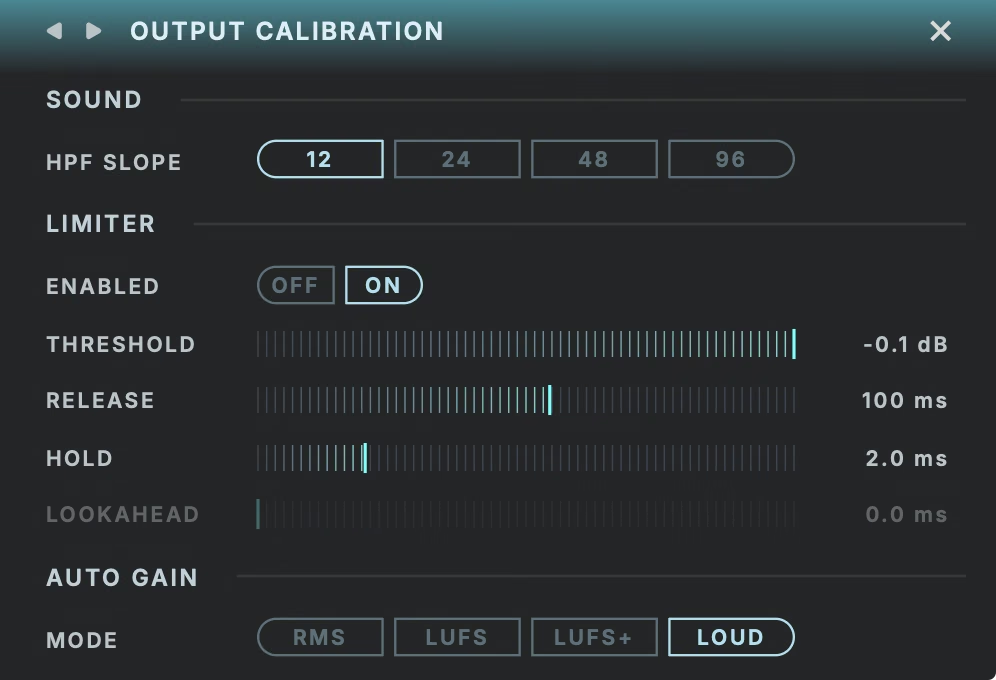
The calibration menu for the output section offers the following options:
Select the slope value for the global high-pass filter on SubCulture’s output. Steeper slope values remove subsonic content more aggressively.
Engage or disengage the brick wall limiter on SubCulture’s global output.
Set the ceiling of the limiter.
Set the recovery time in ms after the limiter acts on a peak.
Set a short delay before the release cycle of the limiter. Longer hold times can reduce distortion on the low end from limiting.
Allow the limiter to react in advance of the transient at the expense of latency. Cannot be changed during playback.
Select the measurement method for the auto-gain control:
SubCulture comes loaded with 177 presets created by leading producers, artists and sound designers.
Preset credits (and special thanks to):
Download instructions are emailed to you right after your purchase, however you can always go to www.babyaud.io/account for the latest software updates. After downloading, unzip the file and select either Mac or PC depending on your system.
If you have an active subscription to the Plugin Collection Plan, SubCulture will appear in your Baby Audio Manager app for download.
Make sure your machine is registered, get the software by clicking ‘Download’ and follow the instructions to install.
Activate your software by entering the license key that was provided in your account when you bought SubCulture. Serial keys are entered in the ‘trial mode’ open screen. If you have any problems activating, please email support@babyaud.io.
If you’re running SubCulture in trial mode, please note that the trial will output 5 seconds of silence every 60 seconds. To buy the full version, go to: https://babyaud.io/subculture
Please read our End User License Agreement here: www.babyaud.io/eula
We hope you’ll enjoy SubCulture! If you run into any issues or have questions along the way, you can always contact us at support@babyaud.io.


.png)