No items in cart
Buy 2 Get 1 Free
Add 3 products to the cart and get the cheapest for free at checkout.
Add 3 products to the cart and get the cheapest for free at checkout.

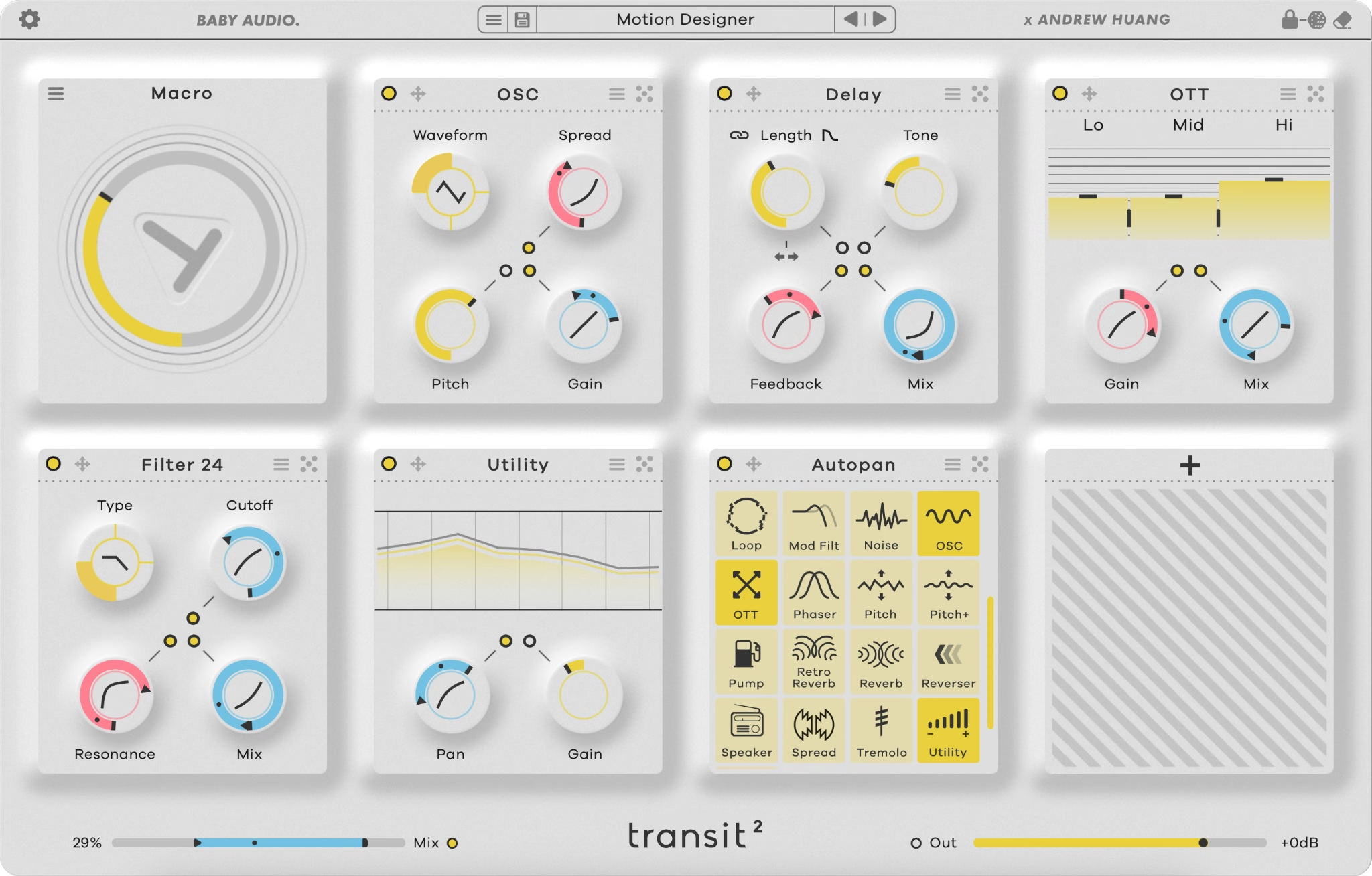
Transit 2 is the next chapter of our collaboration with Andrew Huang. Use 6 different motion modes to control 28 effect modules and create endless forms of movement to energize your tracks. From addictive rhythmic FX motion to powerful transitions that sweep your listeners off their feet. Boring mixes end here.
In addition to being one of the world’s most followed music producers, Andrew’s deep understanding of music tech has made him a valuable partner in the development of this plugin. We tapped into Andrew’s expert insight and exciting new ideas to make Transit 2 even better than the original.
Transit lets you create complex FX transitions with a single knob. Turn the Macro control in the top left tile to affect all dynamic parameters in the effects that follow. As you turn it back and forth, all linked controls will move with it.
Click the circle next to an effect parameter to enable motion control. Set the range and direction using the markers around each knob.
Start and end values are reversible so that parameters can move in either direction during a transition. Right click on a range to invert the start and end points without changing the values.
You can even adjust the slope of the action by dragging the black line inside the circle of dynamic effect parameters.
Once parameters are linked, you can click and drag or automate the Macro control for stunning transitions with up to seven effects and countless parameters in motion.
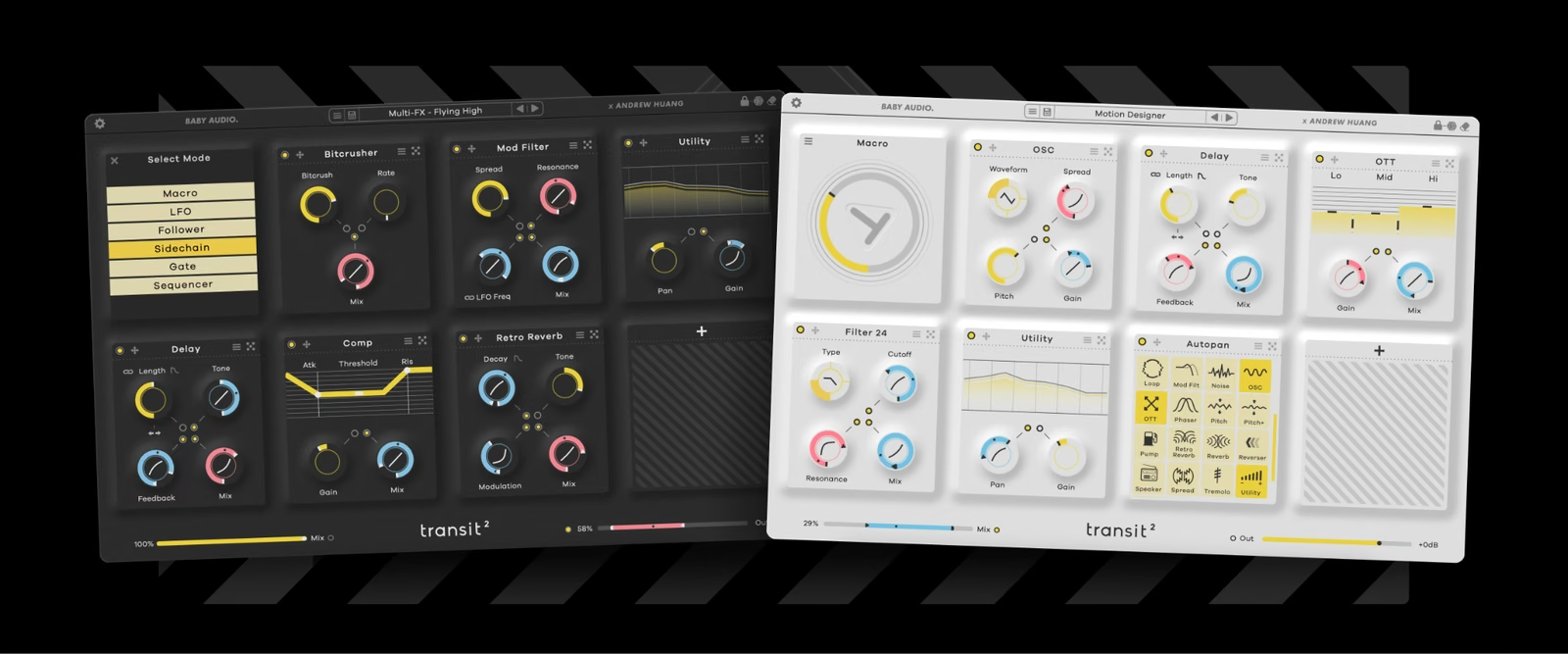
In addition to the classic Macro mode and Sequencer mode from the original, Transit 2 comes with six new modes for even more flexible transitions and sound design.
Explore the Follower, LFO, Gate and Sidechain modes to control transitions and design effects in brand new ways.
Andrew and producers around the world keep coming up with new ways to use Transit. We expanded on our favorites with the new features in Transit 2. Between the brand new Transit modes and additional effects modules, Transit 2 opens up even more possibilities for motion effects, transitions and sound design.
Here are just a few of the creative use cases we’ve found for Transit 2 so far.
Transit 2 offers an improved take on the original Transit workflow. Use it to create stunning buildups, risers, beat drops and SFX transitions in a single plugin with no painstaking automation.
Simply turn the Macro knob (or automate it) and watch up to 7 effects modules morph and change simultaneously to build rising action and excitement as your song transitions from one part to the next.
Use the LFO, or Sequencer in "loop" mode, to design constant, looping FX motion. Get creative and add noise and the built-in oscillator to infuse new textures into your tracks throughout the looping effect pattern. If your song has static pads, guitars and pianos, adding some ongoing FX motion is a fantastic way to make your mix feel more dynamic and engaging. Sync the motion to your host BPM for rhythmic effects that bounce with your track – or keep things unsynced for more fluid movement.
Use the new Follower mode to create effect chains that move with the volume of your tracks. Using this on a drum bus can create 'bouncy' effects where loud hits such as the kick or snare exaggerate certain effects. Or use it on a vocal to add some extra reverb and modulation that gets triggered only during the most intense parts. You can even use the follower mode for surgical mixing or mastering duties to tame loud spikes. (Who thought Transit could also be a mastering tool?)
Sidechain mode applies movement to your track based on the dynamics of another signal in your session. This allows you to create rhythmic motion effects that go far beyond just ducking and pumping compression. Try scaling wet/dry mixes, delay times, filters or even glitch effects to a four-on-the-floor kick for motion effects that reinforce the beating heart of your arrangement.
What if you could trigger a complex, studio-quality transition with a single button at any moment during a live performance? Transit 2’s Gate mode lets you do exactly that. In Gate mode, simply click and hold your desired tempo division to trigger a transition, or assign it to a pad or button on a controller for perfect transitions live.
Getting your effects in motion can be captivating, but Transit 2’s 28 modules are high quality micro-plugins in their own right, packed with extreme and glitchy sound design options. So if you’re looking for a selection of high-quality, radically modern effects in a single package, try Transit 2 with the macro knob parked.
Transit 2 comes with new modes for controlling transitions and creating motion effects.
Click the menu icon in the top left corner of the first tile to select between modes.
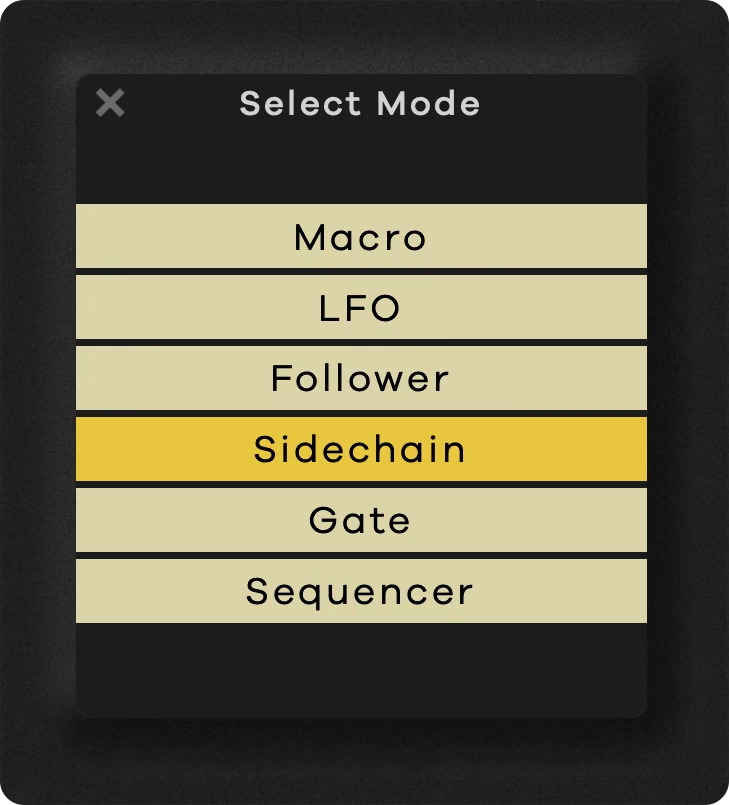
Sweep all linked parameters as you move the Macro knob back and forth. Click and drag or automate it for easy risers, washouts, complex filter sweeps and any other transition you can imagine.
Use traditional LFO waveforms to control how your transitions unfold. In LFO mode the Macro control follows the rate and wave shape set in the LFO panel. Click the link icon to sync the LFO rate to divisions of the host tempo.
Linked parameters react to the intensity of incoming audio to move dynamically with your mix. Set the range of motion, the sensitivity of detection and the attack and release time to fine-tune the action to your dynamics.
Let Transit 2 respond to the dynamics of a different source signal than its input to control transitions and motion effects with another audio source from your session. Like Follower mode, Sidechain lets you customize the range, sensitivity and the attack and release time to tailor the response to your sidechain input signal.
Trigger tempo-synced transitions with a click. Simply press and hold your desired duration value to set a transition in motion. Release it to end early, or assign a MIDI controller for hands-on control of your transitions. In Gate mode, transitions begin right away when you click a tempo division and the effect is held at 100% for as long as you have the mouse (or controller) pressed.
Enable the Pendulum option to sweep the transition back and forth and use the loop setting to repeat the transition action endlessly while holding down a gate division. Gate mode is intended for live use to let you trigger complex transitions on the fly.
Trigger a tempo-synced transition that starts at the next bar after your click. Sequencer mode works similarly to Gate mode, but always aligns with the DAW grid. Sequencer mode waits until the next bar to trigger the transition, so you can easily set motion effects into action at precise points in your arrangement. For certain DAWs, Sequencer mode is the easiest way of getting perfectly timed transitions. Just automation-record the mouse-click prior to the bar where the transition needs to start and Transit will take care of the rest. Sequencer mode also includes pendulum and loop options that work the same as in Gate mode.
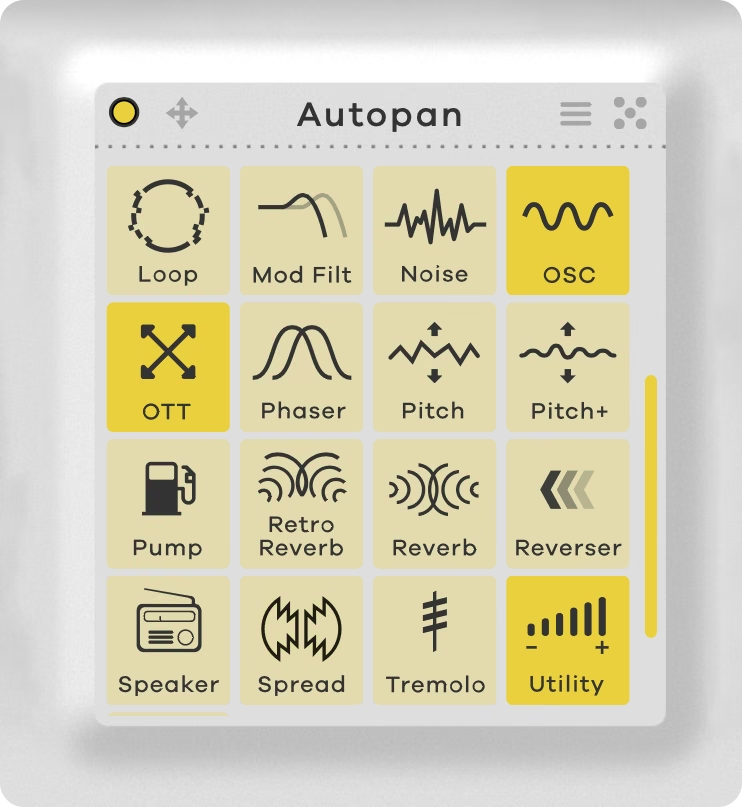
Transit 2 comes with 10 new effects for a total of 28 flexible sound manipulation modules.
Click the module title or the ‘+’ icon to add an effect to the tile from the list.
This module creates stutter and repeat effects that can be synced to the host tempo or set freely. Use the Length control to set the duration of the captured slice and the Smooth control to affect the transient of the stutter. Mix the effect in over the course of a transition for thrilling and ecstatic buildups.
This module reverses slices of incoming audio according to the length set by the Memory control. Set the slice length in tempo divisions or milliseconds and choose between half-speed, double-speed or regular speed playback. The Smoothing control softens the onset and release of each slice for a gentler sound.
Independent pitch shift and time stretch functions designed for transition effects. Speed values lower than 1.0 slow down playback, until the audio stops entirely at 0.0. Values greater than 1.0 speed up playback until the internal buffer becomes too small and the stored audio begins to loop. Use the Speed control for a tape-style varispeed effect and adjust the Stretch control to compensate for pitch modifications from the Speed control.
This module provides an alternative to Transit’s primary reverb with a more vintage and grainy sound. Based on early digital FDN reverb techniques from the 80s, Retroverb includes dramatic tone roll-off and modulation controls for that unmistakable flavor of vintage ambience.
This module is a stereo filter bank with multiple filters at varying frequencies from left to right that create a hypnotic swirling effect. Spread controls the modulation characteristics of the various filters linked to the LFO. Think of it like a rotary speaker (or 4!) on steroids. Can be synced to the host tempo or set freely in Hz.
This module is a traditional downwards compressor with a much more transparent sound than the OTT effect that was available in V1. Its dry/wet control lets you use it in parallel to add punchy dynamics to any transition section.
This module is a high performance pitch shifter with a cleaner sound than the original Transit Pitch effect. It hosts an onboard tempo-syncable LFO linked to the pitch control for warbling vibrato and radical pitch swings. Set the LFO Depth to 0 for transparent static pitch shifts and hold the Ctrl key while adjusting Pitch to transpose in semitone increments.
Brings the sound of a transistor radio with the unique lo-fi character of a small speaker. Shape the overall tone with the High and Low controls and add analog-style grit with the Drive control.
This module supplements Transit’s primary chorus effect with a more vintage and colorful BBD-style chorus. The Stereo+ control lets you widen the perceived soundstage with lush modulation for immersive 3D effects during transitions.
Adds a simple three-band EQ for global tone-shaping or DJ-style frequency isolation. With 20 dB of boost and 60 dB of cut available for each band, the EQ module can be used for subtle adjustments or radical frequency shifts.
Automatically sweeps your signal back and forth through the stereo field at a user defined shape, width, and rate. Use it to add interest and perspective to a sound.
This module is like a digital time machine, reducing the accuracy at which your sound is reproduced to give a crunchy digital retro vibe. Use it to give your sound some subtle edge or go for all out digital destruction.
This module takes your sound and creates subtle variations of it using time and pitch differences. Like a musical multiplier, the chorus gives the illusion of having multiple “voices”. Use this to add depth and richness to your audio.
The delay clones your audio and plays it back over time, like an echo. Use it to add space and dimension to your track. Modulating the Length parameter can lead to some of the more interesting possibilities of Transit. Click the “Tails” icon ON to let your delay tail ring out after the transition has ended. (Otherwise, it will cut with the end of the transition.)
This module is a versatile distortion workhorse. Various transfer curves allow you to subtly shape your audio or push it into complete decimation. Add just a bit of harmonic richness or transform your sound completely.
A simple, two-pole filter with a standard range of filter types. Can be used to create captivating motion or to emphasize specific frequencies of your sound with the Resonance control. Whether you’re carving space for your high-end or creating screaming sweeps, the filter is a powerful effect for creating a sense of motion.
Filter 12’s bigger brother with the same controls but a more aggressive filter slope and sound.
This module takes your audio, makes a copy, and delays it slightly, then mixes it with the original audio. The result is a sound that twists and swirls with otherworldly qualities. Use it for shimmery effects, or create a total psychedelic experience.
Generates white noise using a digital oscillator. Use the filter to achieve various tonalities – from bright and airy, to deep and warm. Use the noise generator to give energy to your incoming audio during build-ups, for classic EDM sweeps, or as a sound generator to add texture.
A virtual-analog oscillator with the four basic wave shapes: Sine, Saw, Square and Triangle. The pitch control is measured in terms of musical notes, turning Transit into a playable instrument in its own right. Use the oscillator to create risers or falling tonal sweeps – or apply a randomized modulation source to get a melody generator.
A classic effect for adding intensity. This multiband compressor brings out details in your audio and gives an over-the-top attitude to your sound. Perfect for pushing your sound to the max and adding a modern sheen during build-ups.
Creates a series of peaks in the frequency spectrum that are modulated over time to give that classic underwater-like phasing effect.
This module will pitch your audio up or down independently of the playback time. Use it to create pitch bends, alien-like sound effects, or give vocals a modern twist.
Pump gives you a ducking effect to your audio, similar to how you might sidechain a kick to a bass. It can be used as a mix tool to create space in your mix, but also to give rhythmic motion to things like percussion and guitar parts – or entire transitions.
Reverb creates a sense of space and depth around your audio. Use it to simulate a small space or blow your sound into the atmosphere towards the end of a transition. Click the “Tails” icon ON to let your reverb tail ring out after the transition has ended. (Otherwise, it will cut with the end of the transition.)
Spread widens or narrows the stereo image of your sound. Whether you want to create an expansive soundstage that widens throughout a transition or narrow in towards the center, Spread has your spatial needs satisfied.
This module modulates the volume of your sound in a rhythmic pattern, unsynced or synced to your host BPM. Use it to give gentle variances and motion, or crank it all the way up to push the speeds into audio-rate.
A general workhorse with gain and pan as well as a spectrum visualizer. Use it to push or pull your audio through various parts of the chain and ensure your signal is always at the optimal level and stereo placement. Try using this before Distortion or OTT for some extra firepower.

From left to right, the top menu gives you the following options:
* Right clicking the dice / random icons will disregard all lock settings and give you entirely random settings. This tends to yield more chaotic results so use this shortcut at your own risk!
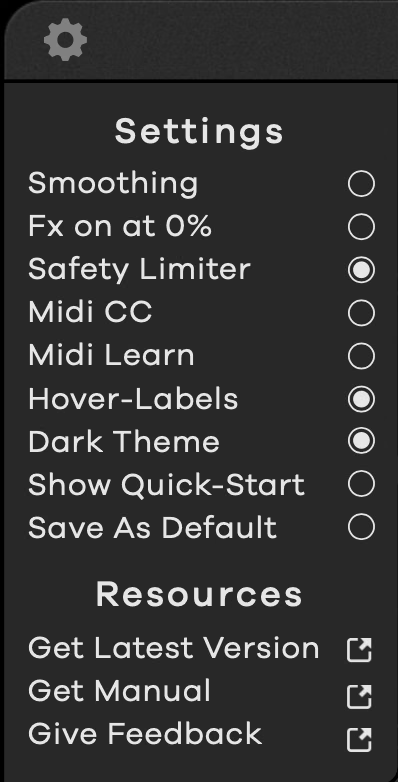
Smoothing engages the effects with a slight crossfade to avoid very abrupt changes, which can sometimes sound choppy. Turning this toggle ON will make your transitions smoother and more musical. Turning it OFF will make your transitions instant. This is a creative and stylistic choice and we wanted to give you both options.
FX on at 0% ensures the effects chain is always engaged, even when the motion macro is set to 0%. This makes your transitions even smoother as the effect modules are always running in the background. We recommend turning this toggle ON for the smoothest experience. You can still ensure that no effects are heard at 0% macro value by having the mix/amount knobs for each effect be dynamic and start at 0% (meaning 0% macro value = no effect output).
Apply a limiter with 0 dBFS ceiling after Transit’s global output to ensure transition effects don’t cause clipping.
Allow Transit 2 to respond to MIDI CC commands defined in MIDI Learn Mode.
Automatically map a parameter to an incoming MIDI CC. Turn on MIDI Learn, adjust a parameter with your mouse, then move a knob on your MIDI device to detect CC and map the parameter.
Note: In some DAWs like Logic Pro, Transit may need to be inserted as a ‘MIDI Controlled Effect’ to respond to MIDI CC.
Display parameter titles when hovering of them with the mouse.
Toggle Transit 2's UI to the alternative theme.
Launch the quick start tutorial from the beginning.
Clicking this toggle will save your selected color theme and screen size as the default theme + size when initiating the plugin.
Transit’s preset browser gives you easy access to the best patches from Andrew Huang and other notable producers and sound designers:

Here are the top panel functions of the preset browser from left to right:
Preset packs will appear in the left column of the browser window.
We want to thank the following sound designers for creating presets for Transit 2:
Andrew Huang, Alessandro Mastroianni, Christian Laffitte, HydraTek, MNML SGNL, Myagi, Peter Hurton, Protovolt, ReSeT Ryan Tram, Solidtrax, Tokyo Speirs, Zardonic.
Special thanks to Bo Astrup.

From left to right, the effect preset bar gives you the following options:

From left to right, the bottom section of the interface gives you the following options:
Transit comes equipped with several shortcuts to speed up your workflow.
A software download is emailed to you right after your purchase, however you can always go to www.babyaud.io/downloads for the latest software updates. After downloading, unzip the file and select either Mac or PC depending on your system.
Activate your software by entering the license key that was provided in your account when you bought Transit 2. Serial keys are entered in the ‘trial mode’ open screen. If you have any problems activating, please email support@babyaud.io
If you’re running Transit 2 in trial mode, please note that the trial will output 5 seconds of silence every 60 seconds. To buy the full version, go to https://babyaud.io/transit
Please read our End User License Agreement here: www.babyaud.io/eula
We hope you’ll enjoy Transit 2 and use it in your own way to achieve things we had never even intended for it to do. If you run into any issues or have questions along the way, you can always contact us at support@babyaud.io – enjoy the journey!


.png)